
How to Create Interactive Lessons on Edvibe

A static page asks learners to look at an activity. An interactive lesson also gives them somewhere to answer, checks suitable tasks automatically and keeps the work for review. Edvibe supports text, audio, video and image activities alongside templates such as matching, gap-filling and word order.
Create a coursebook and a lesson
Open Materials → Personal → Create. Enter the title and teaching language. You can add a cover and description, and enable Sections to group lessons into modules.
Choose New unit, name the lesson and select Save. Add an optional description or cover to make it easy to recognise later.
Organise the lesson
Use the section panel on the right to create stages with clear names. Choose Create a new section to add one. Sections can be renamed, reordered or deleted; deleting a section also deletes its exercises and cannot be undone.
The special Exercises for homework section keeps its content hidden from learners until you assign it as homework.
After creating a unit, you enter preview and edit mode. Build a short sequence first: an introduction, one practice task and a check of understanding. You can add more once that sequence works.
Create an exercise
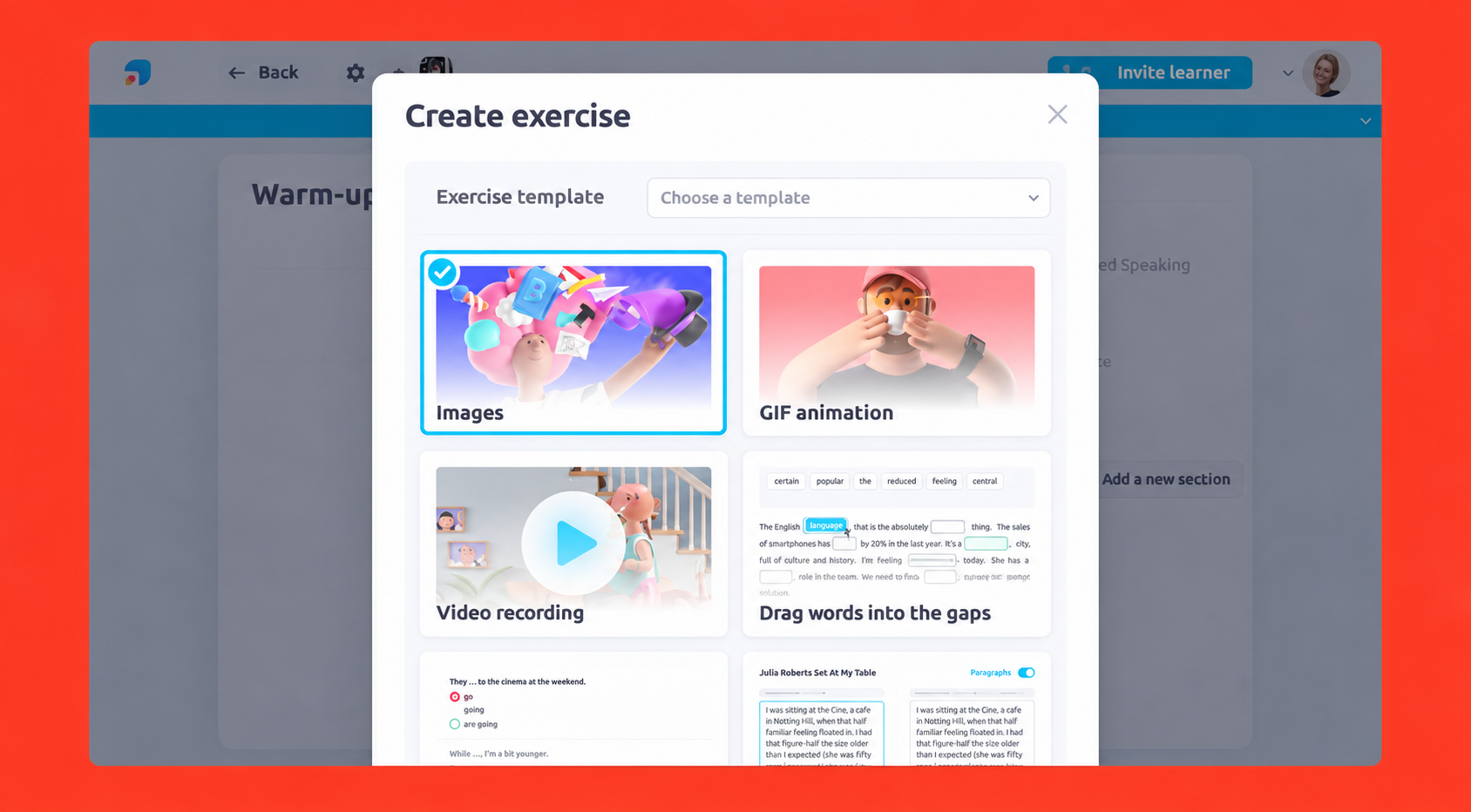
Choose Add an exercise, select a template and fill in the required fields or upload your files. Each template includes hints. Select Create to see the activity in preview.
To add a task between two existing activities, use the plus control on the line between them. Fill in the instruction field when the task needs its own number. Leave it blank when several templates belong to one exercise.
Try the task before teaching it. Check the instructions, answer key, images and audio. A matching task should have unambiguous pairs; an open writing task needs your review rather than an automatic right-or-wrong decision.
Edit and arrange exercises
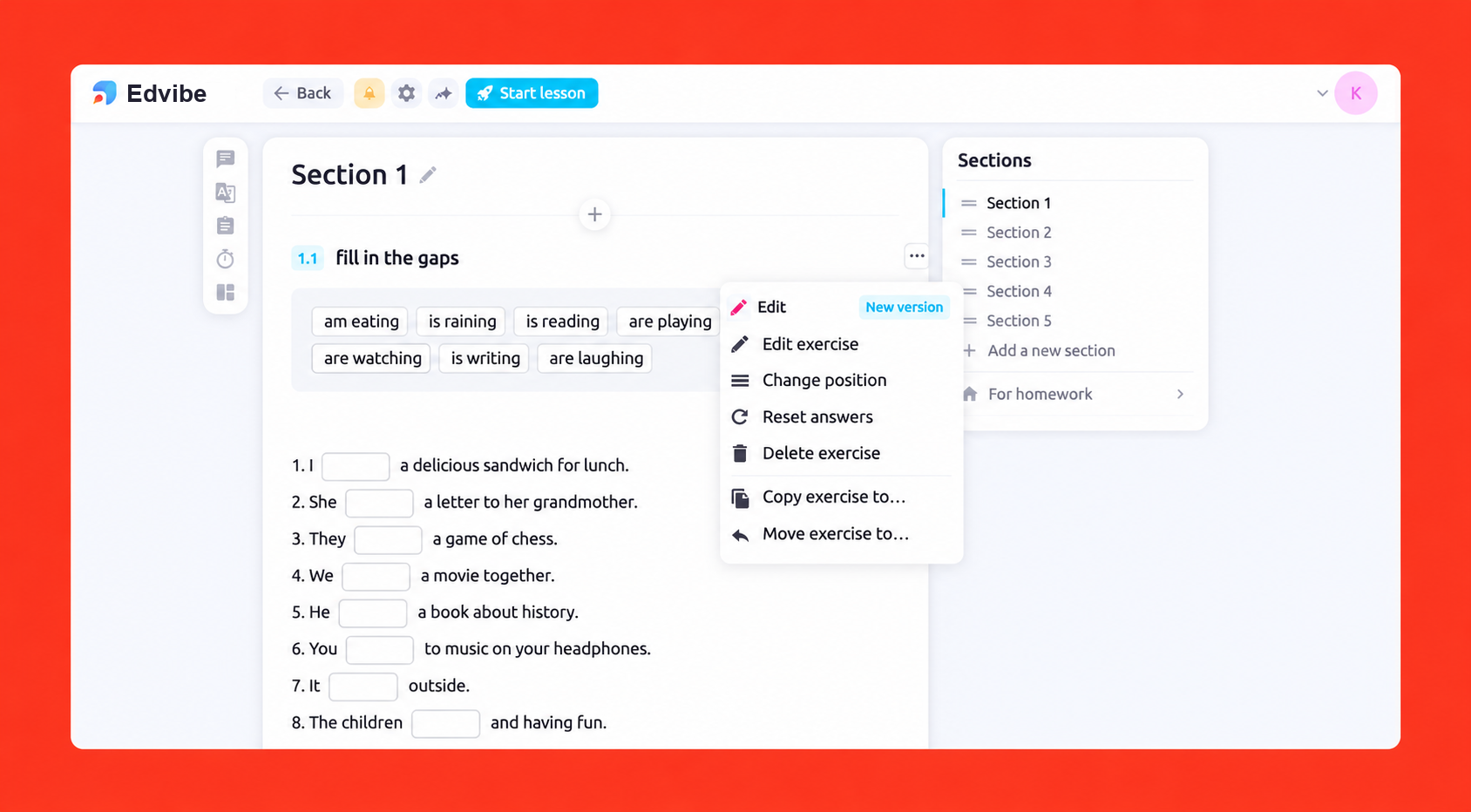
Open the exercise’s contextual menu to edit it, reset answers, delete it, change its position, copy it or move it to another section, lesson or course. With Change position, drag exercises into order and save.
Before deleting a section, unit or coursebook, check what it contains. These deletions cannot be undone.
Use the lesson in a class
In preview and edit mode, choose Start a lesson, then select the learner or group. The lesson is pinned to their virtual classroom.
You can also create materials from a class by choosing Create your training material. Those materials are available in that class and saved in Materials for later use.
Prepare homework and feedback
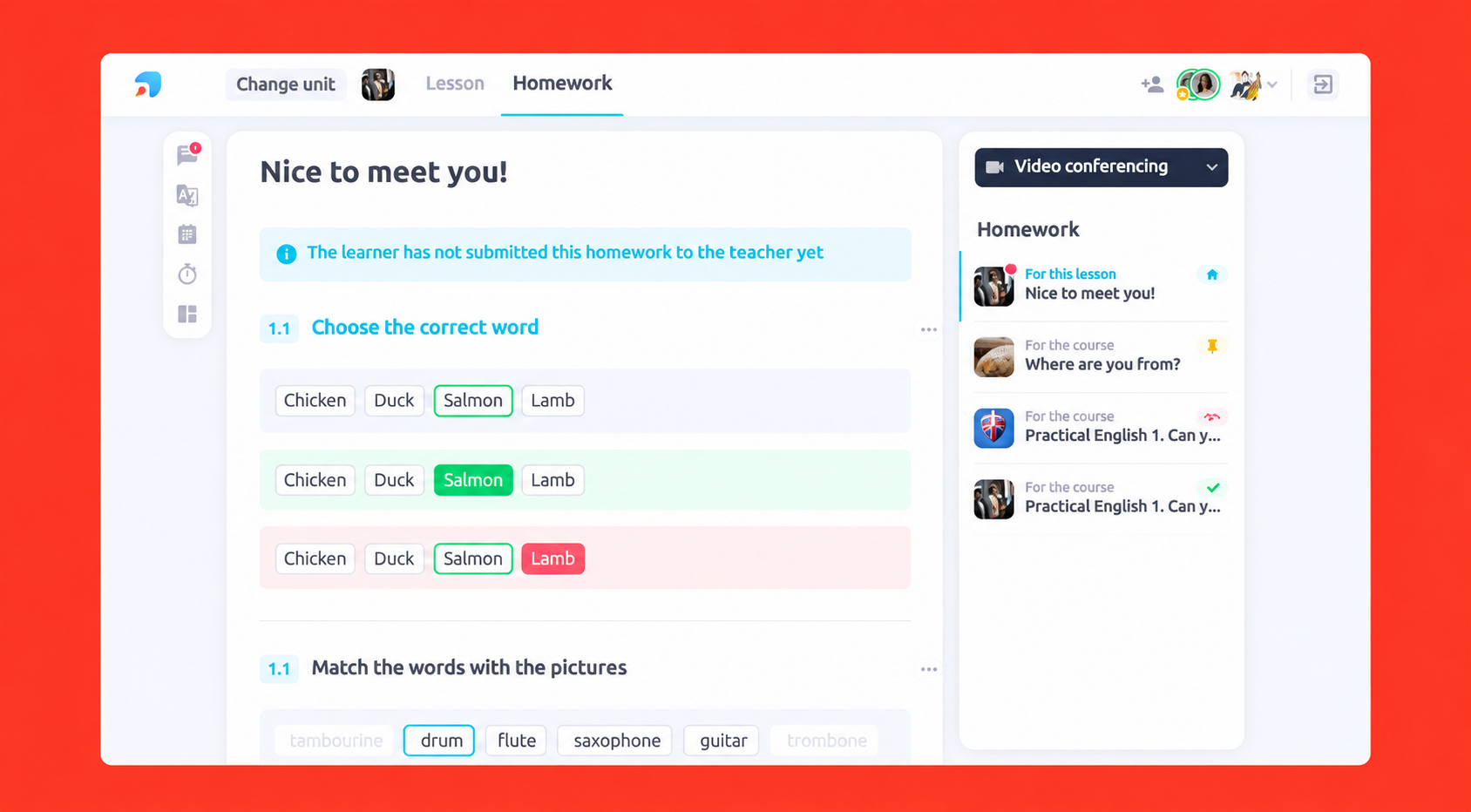
Keep tasks intended for independent practice in the homework section and assign them when the learner is ready. During review, automatic checking can help with closed-answer tasks. Mark open responses manually and leave a text or voice comment when an explanation would help.
Prepare the next version
Use the learner’s answers to decide what to adjust: shorten an instruction, add a model or prepare another example. Reusing the same lesson is useful when you keep the activity’s purpose and adapt the support to the next learner.


