
Seven Edvibe Features You Might Have Missed

A classroom tool is useful when you know when to use it. These seven Edvibe features help with vocabulary, preparing materials and keeping attention on the activity.
1. Vocabulary and translation
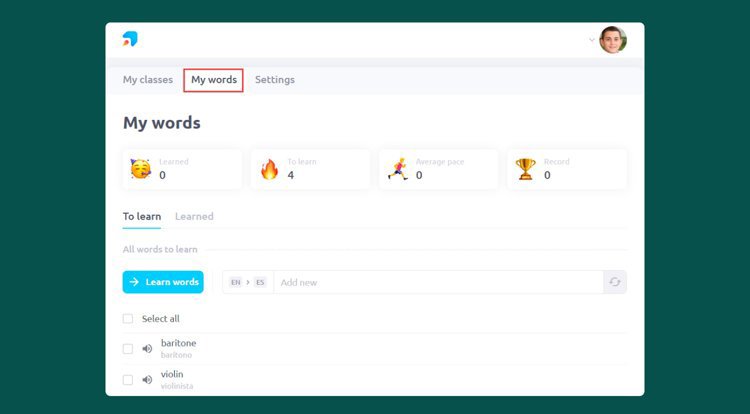
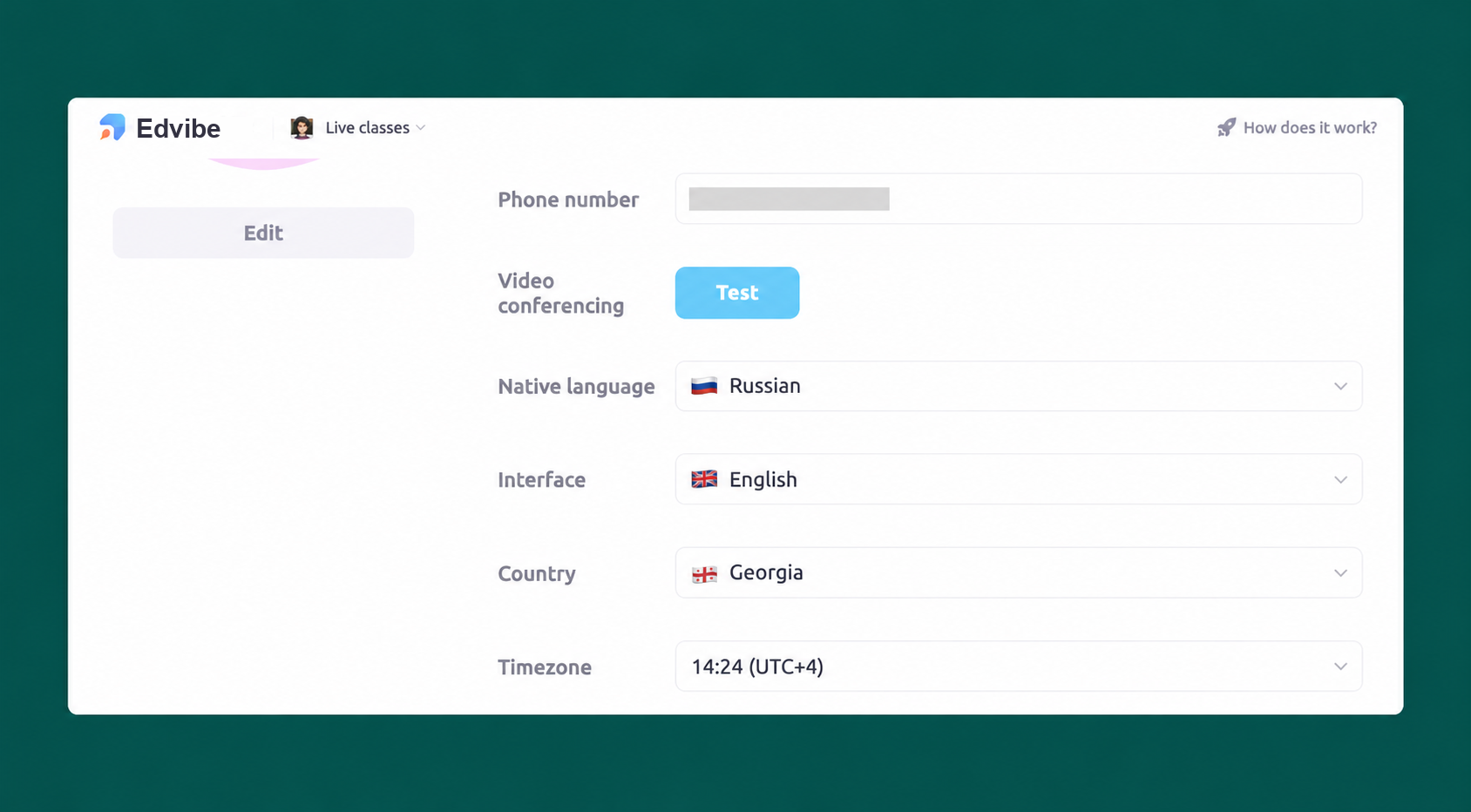
Learners can look up words and add them to their personal dictionary. Check the native language in the learner’s profile: it affects how the dictionary works.
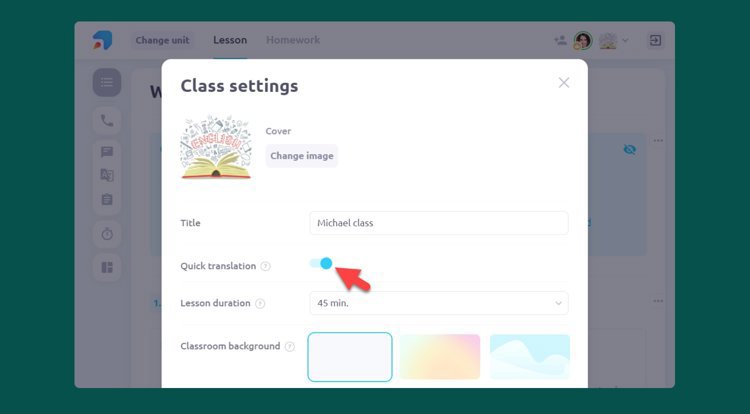
In a group with a shared native language, selecting everyone adds a word to the group dictionary. Select one learner when the word is useful only to them. Words learners add themselves go into their own lists.
In mixed-language groups, adding a word for everyone requires a translation entered manually. Select an individual learner first when you want automatic translation for that person.
2. Interface settings
The interface language concerns buttons and controls; it is different from the language you are teaching or a learner’s dictionary language. During setup, check the available profile and interface settings with your learner so your joining instructions match what they see.
On a first visit, show the learner where to enter the class, open materials and find homework. A short practical tour is more useful than asking them to memorise every control.
3. Classroom backgrounds
Edvibe supports lesson backgrounds. Choose one that contributes to the task: a room for describing positions, for example. Keep enough clear space around the exercises that the background does not compete with the text.
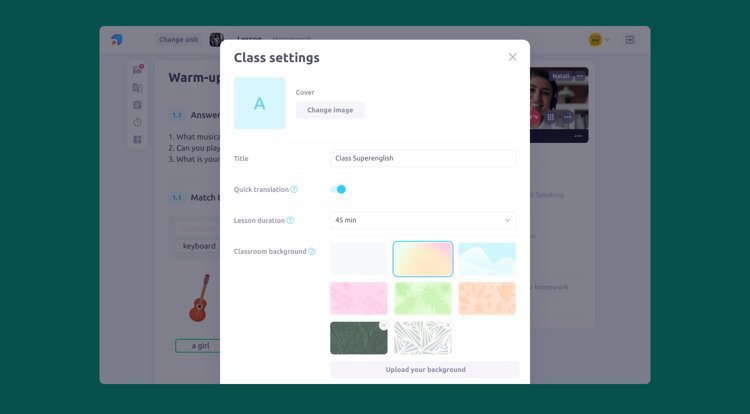
A background can also hold a small language reminder. Check that the lettering remains readable on the learner’s screen.
4. Recognising text in an image
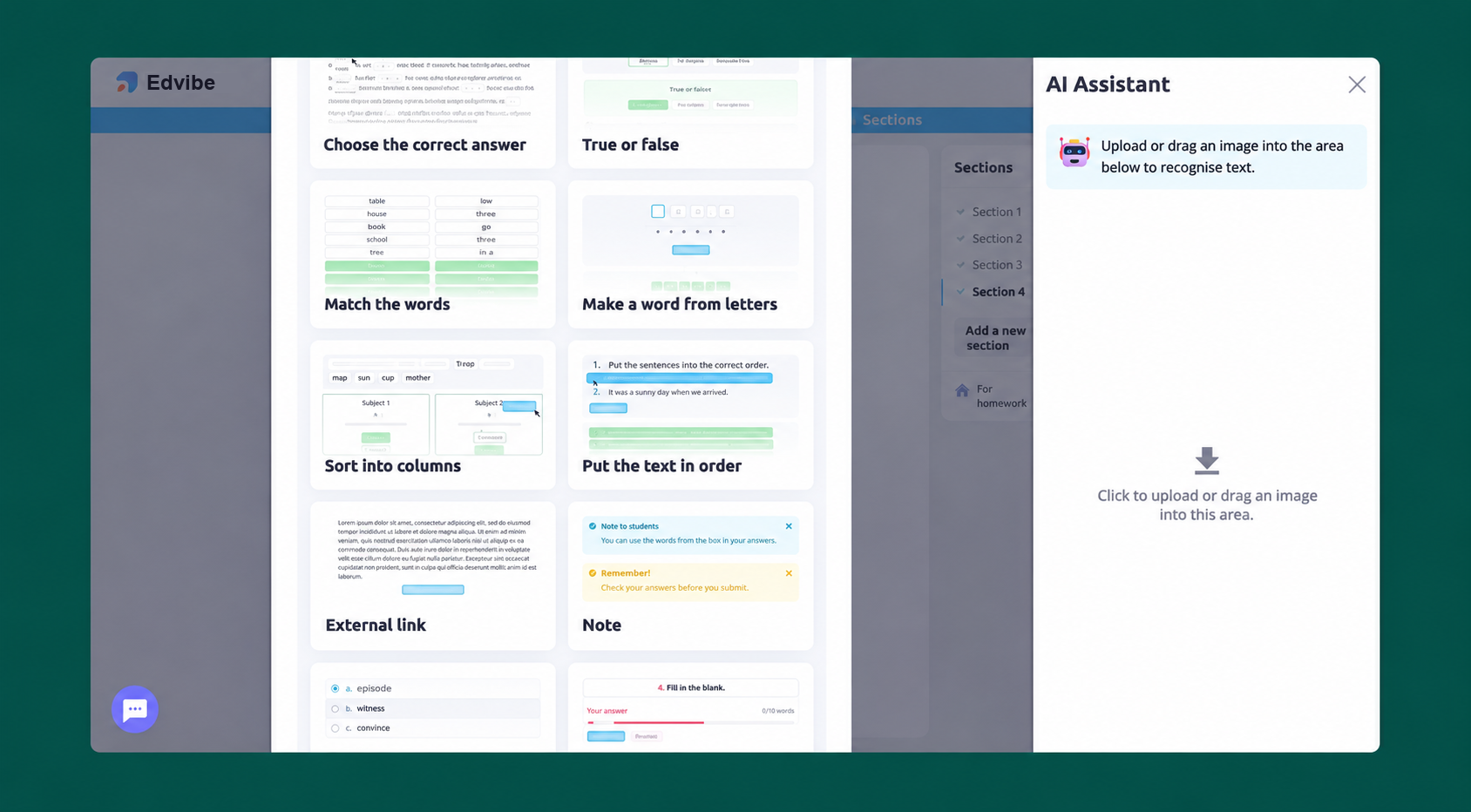
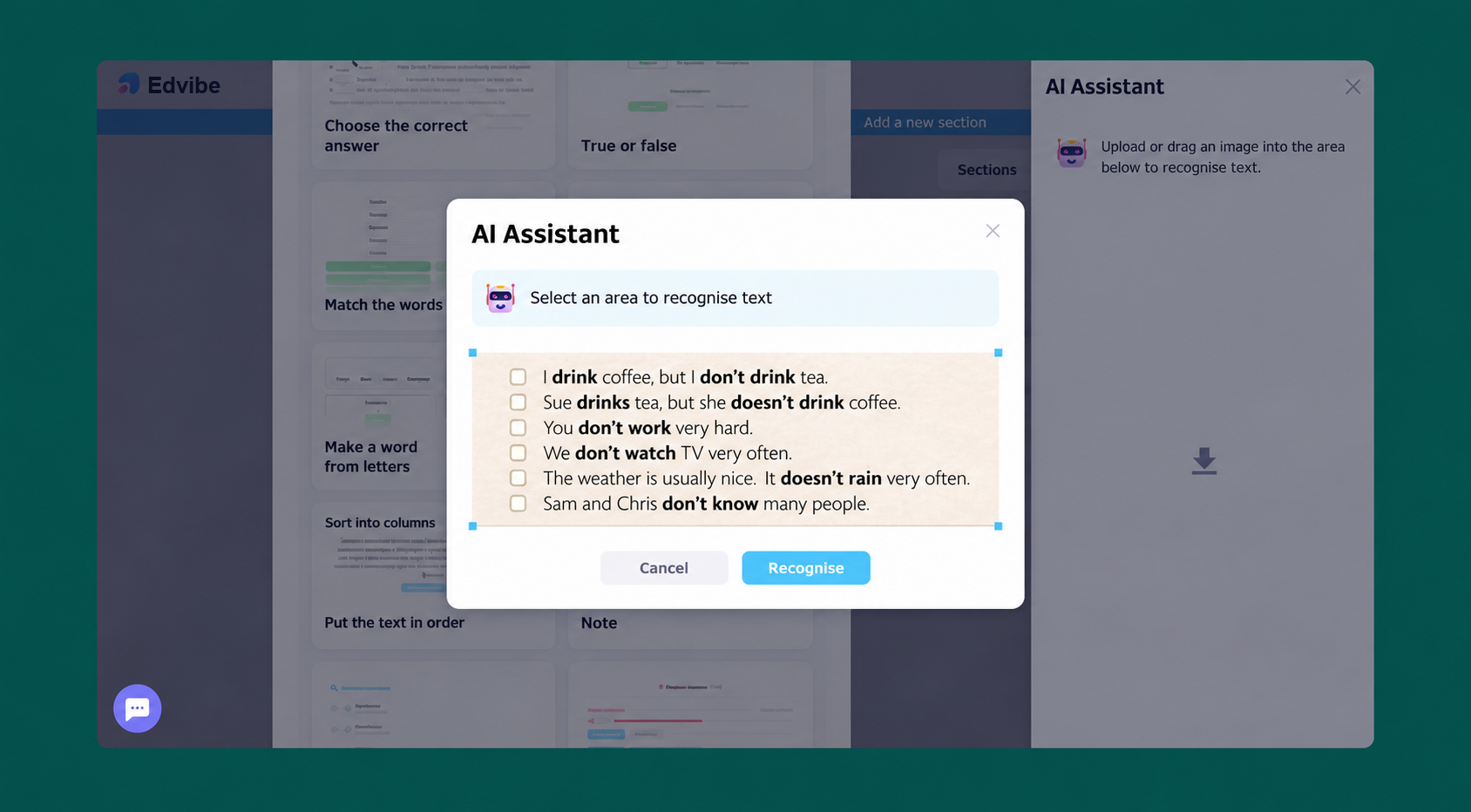
AI+ can extract text from an image, including a photographed document. Use material you have permission to adapt, then check the extracted text before placing it in an activity.
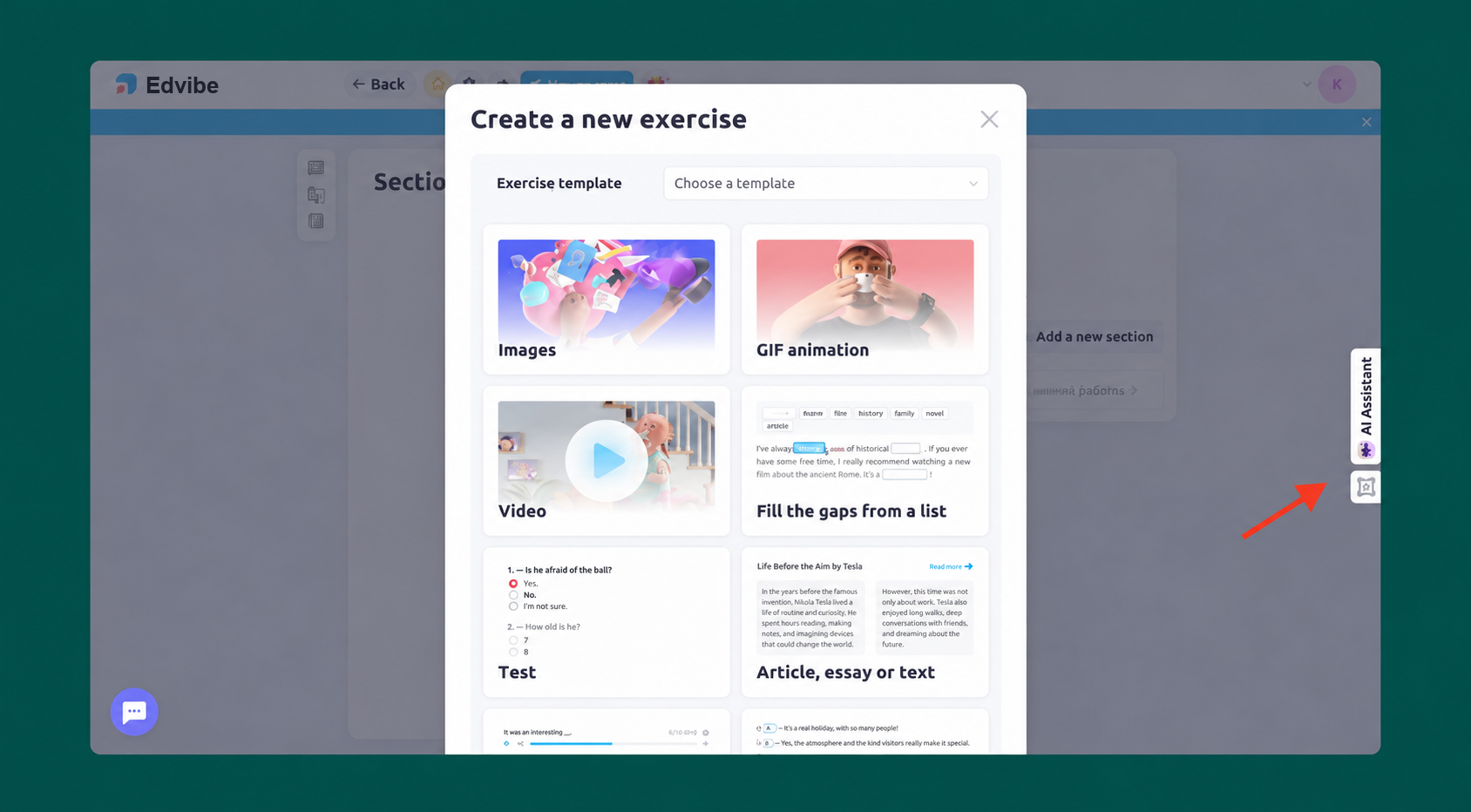
Choose image recognition when the task is to recover text, rather than asking an image generator to recreate a page. This gives you editable text to review and arrange in an exercise.
Compare the result with the source. Pay particular attention to punctuation, numbers and answer options. Then choose a template that lets the learner do something with the text, such as ordering sentences or completing gaps.
Find more examples and suggestions for the assistants in this guide.
5. Focusing on an exercise
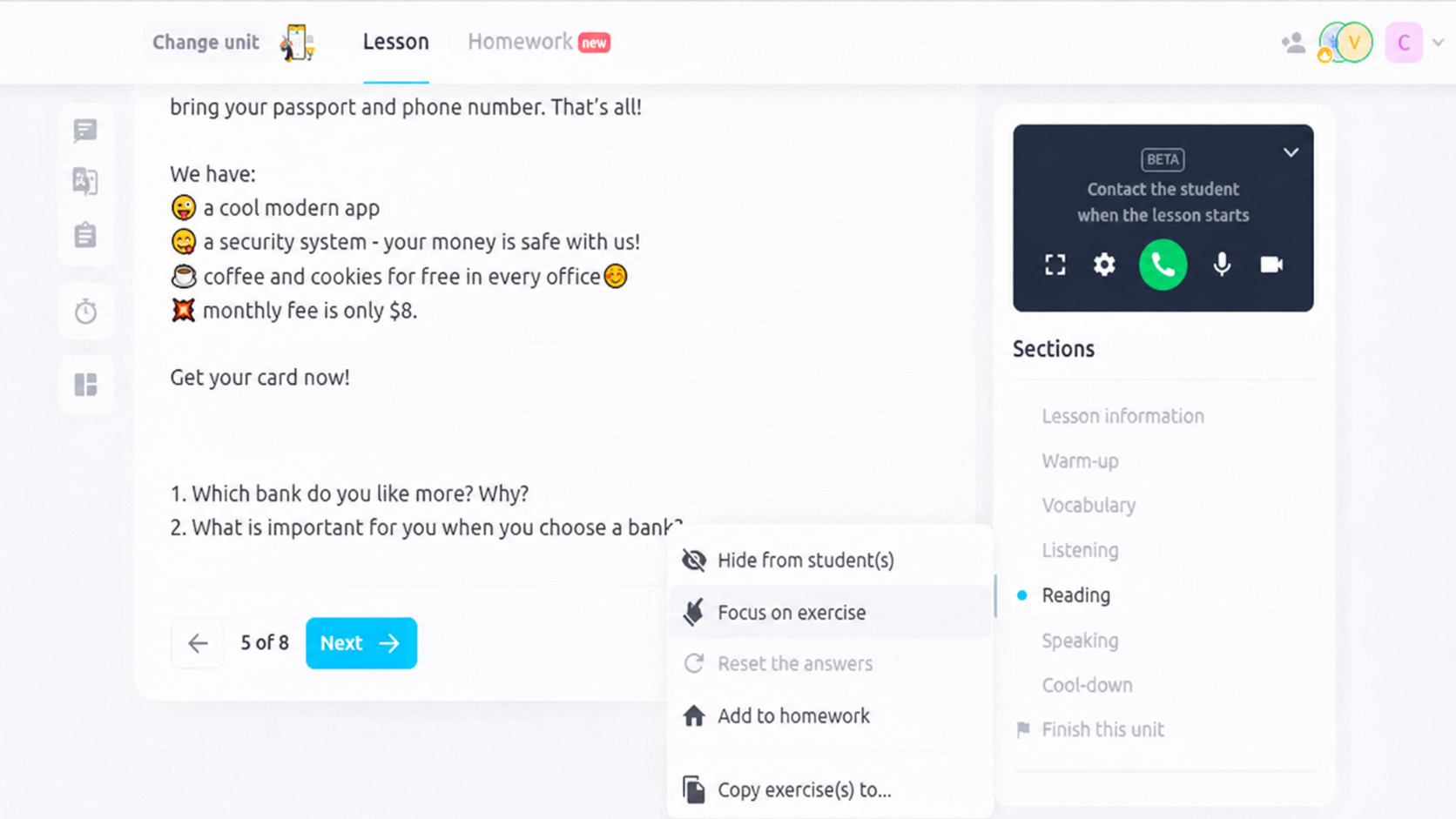
Open the exercise’s three-dot menu and choose Focus on exercise when you want learners to look at that task.
6. Resetting answers
You might complete an exercise during a lesson, then want a learner to try it again for homework. Open the three-dot menu in the top-right corner of the exercise and choose Reset the answers.
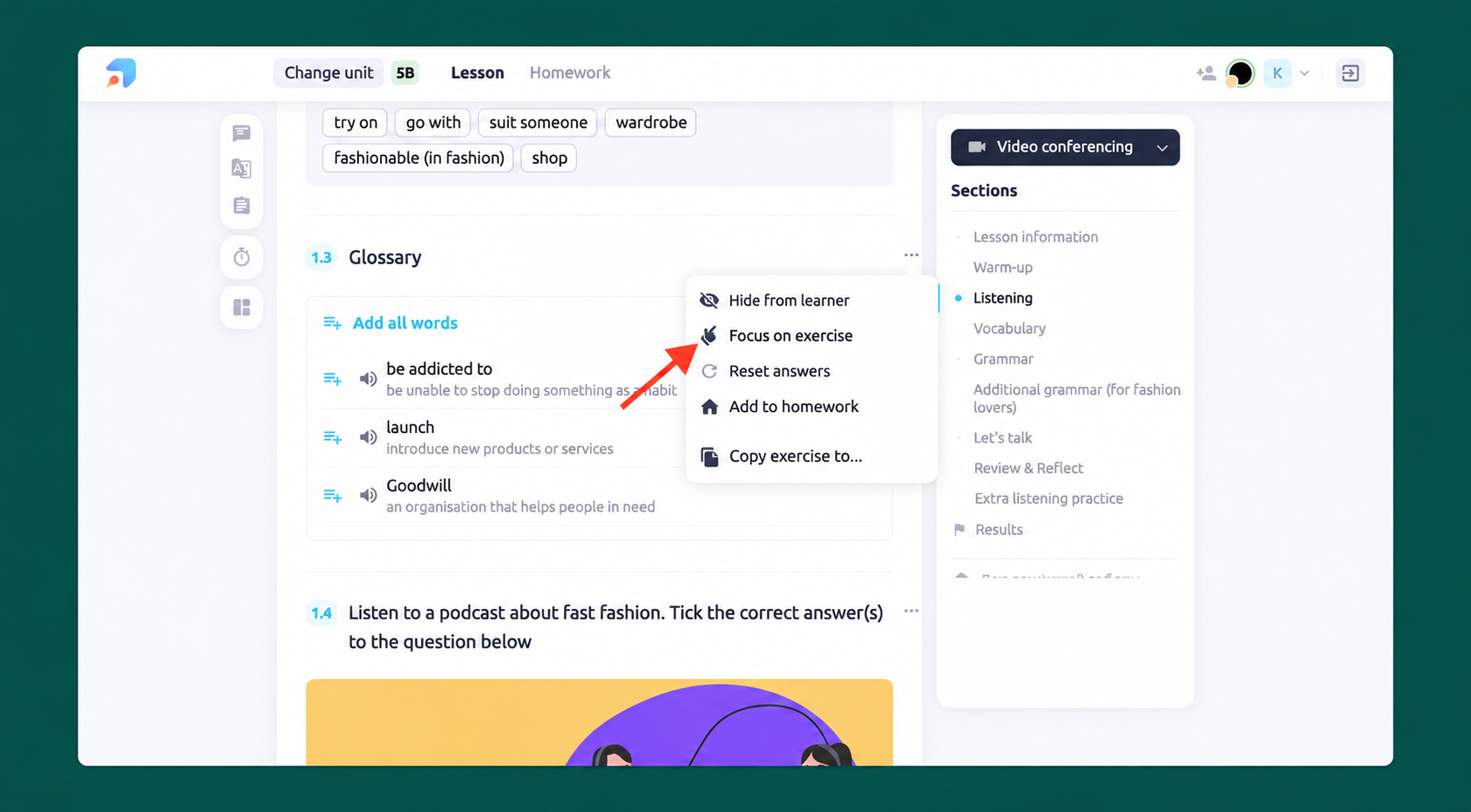
Resetting answers lets learners repeat an activity. Check any feedback or answer history you need before resetting it.
7. Built-in calls
Use the classroom phone control to start a video call. In a group class, choose Start a call; learners receive a notification to join. You can also use another calling service while working with the lesson.


