
How the Edvibe Virtual Classroom Works
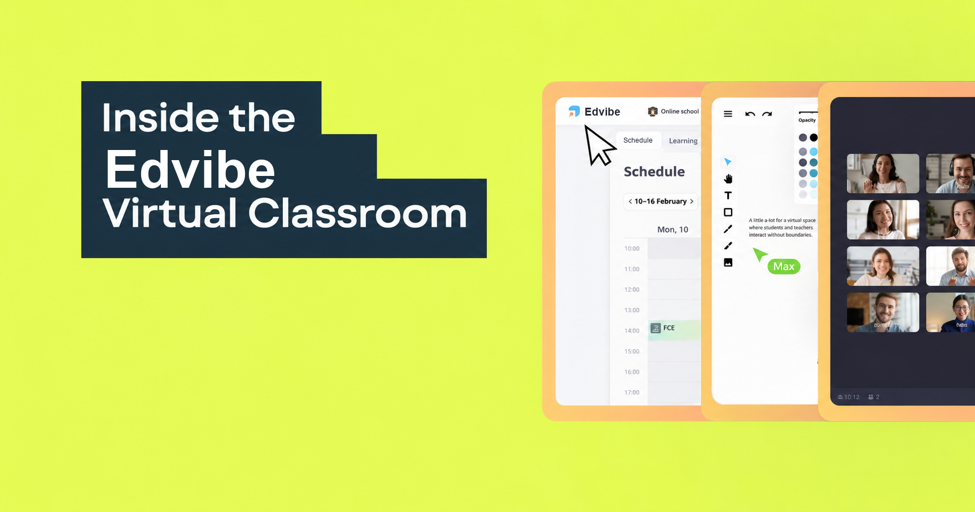

In an online lesson, a learner needs somewhere to listen, answer and see your explanation. Edvibe’s virtual classroom brings those actions into one space. Here is how to use its main tools and decide which one a task needs.
What is the Edvibe virtual classroom?
It is an interactive space for live online lessons, bringing the main teaching tools together.
Think of it as an online room for you and your learners. You explain a topic, watch a video, listen to audio, work through interactive activities and tests, or draw on a whiteboard. You can see one another’s activity without sharing your screen, much as you would in a physical classroom.
What is inside the Edvibe virtual classroom?
1. Video calls
The built-in call means you do not have to switch to a separate video service during the lesson.
To start, click the green button with the phone icon.
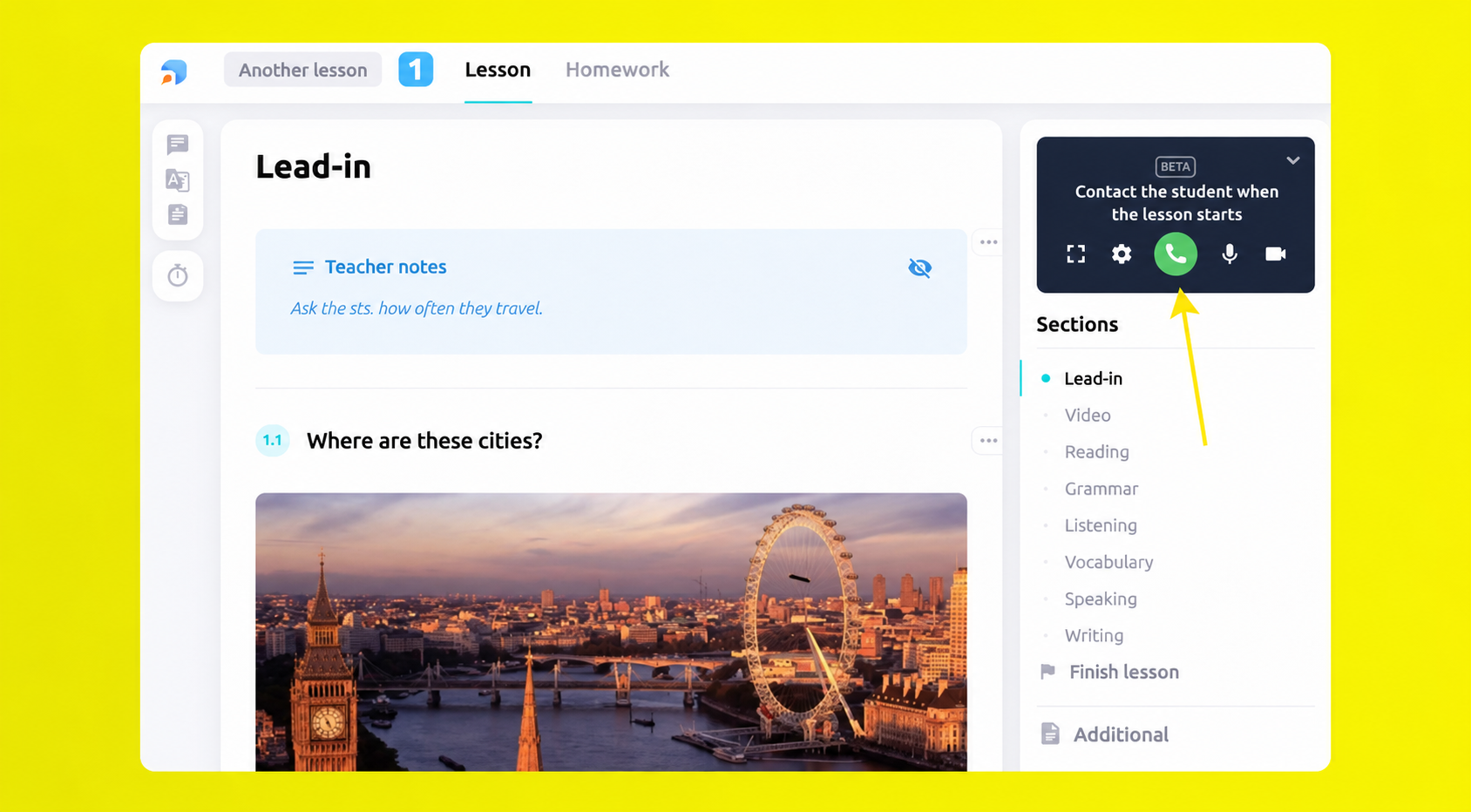
For a group call, choose Start a call in the video window. Learners receive a notification and can join. You can use another calling service if that suits your setup.
2. Working together in real time
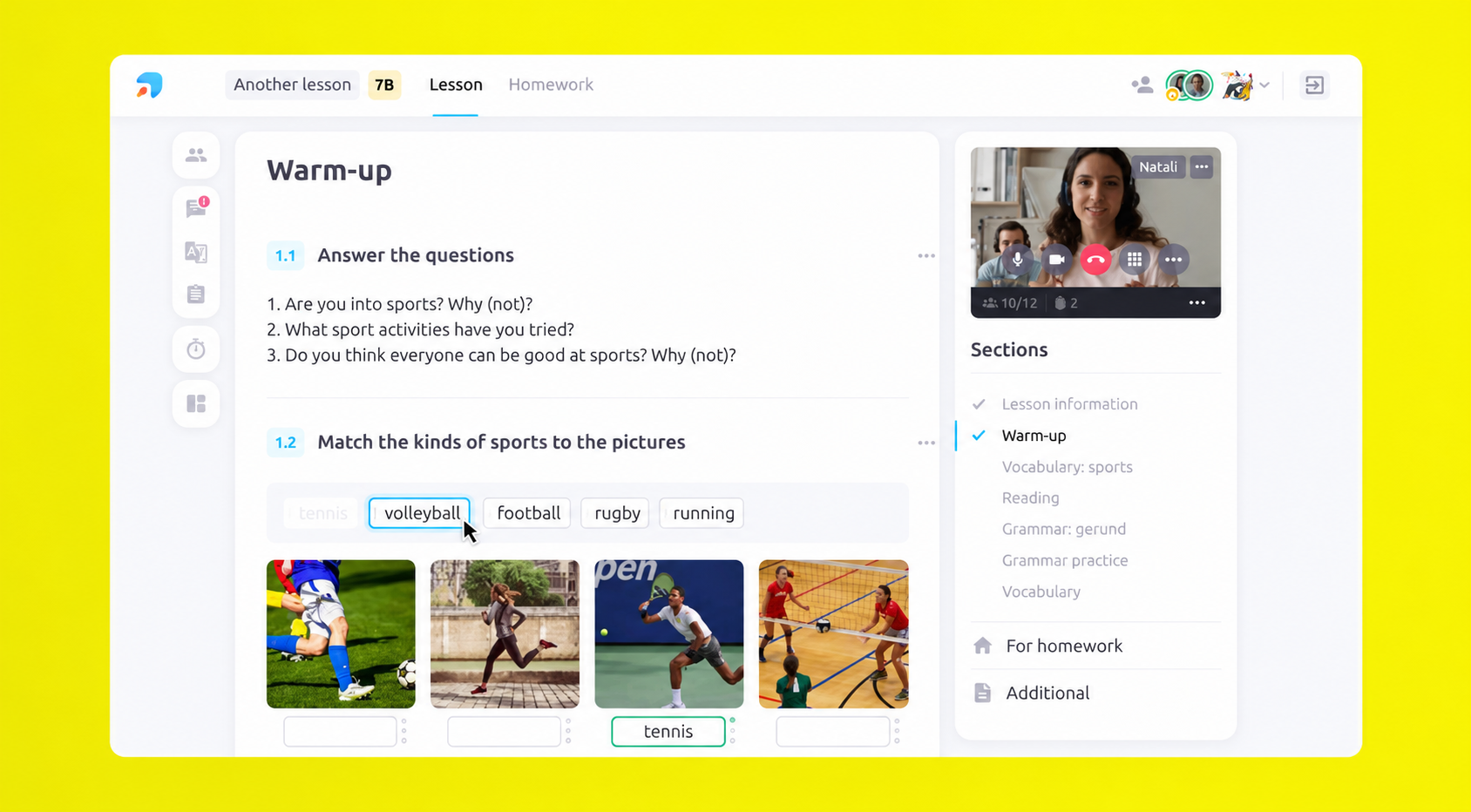
You see what learners are doing, and they see your activity as it happens.
Suppose you have explained the difference between Present Simple and Present Continuous. A learner starts writing sentences for an exercise. You can follow their answer as they type and help if they have misunderstood the task.
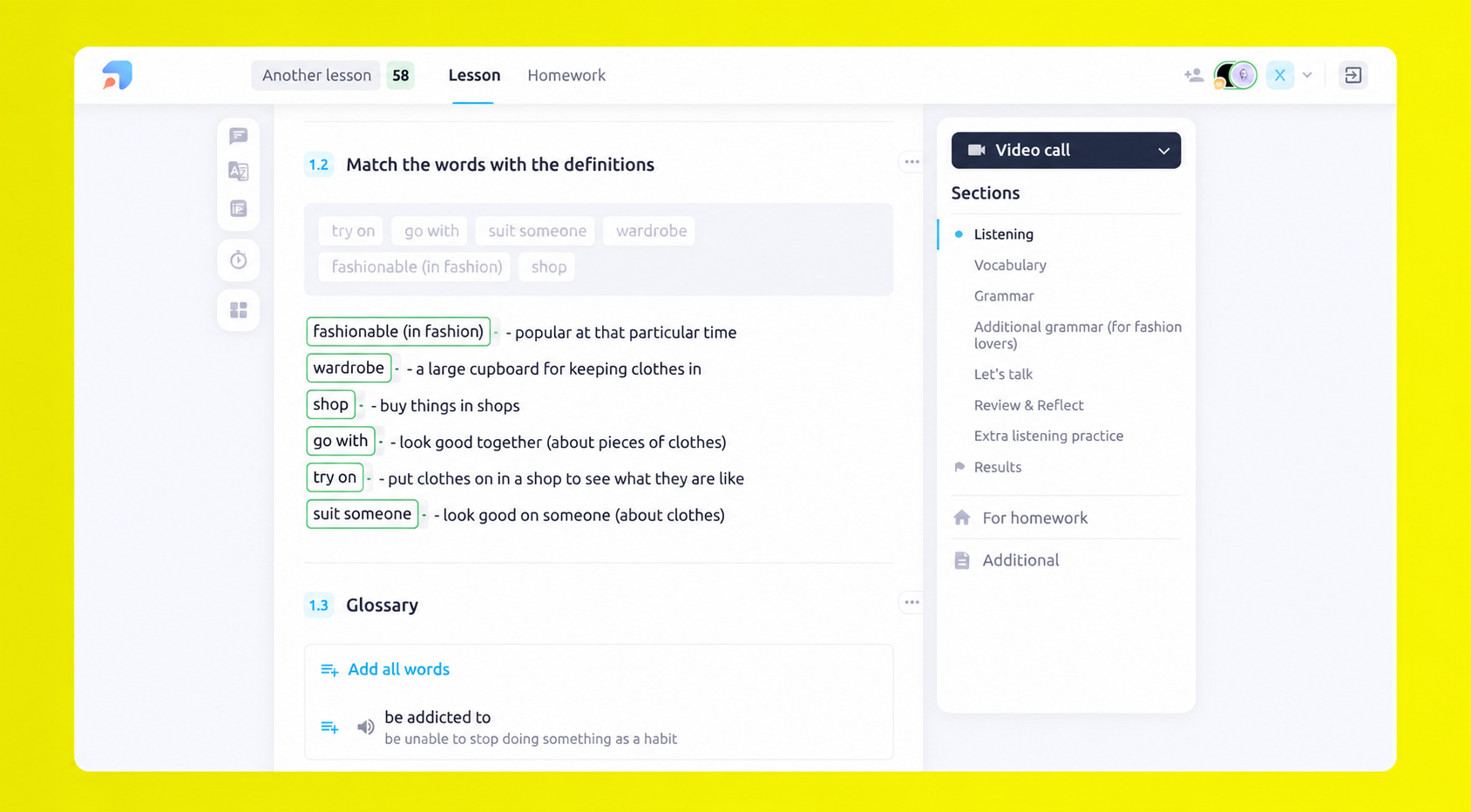
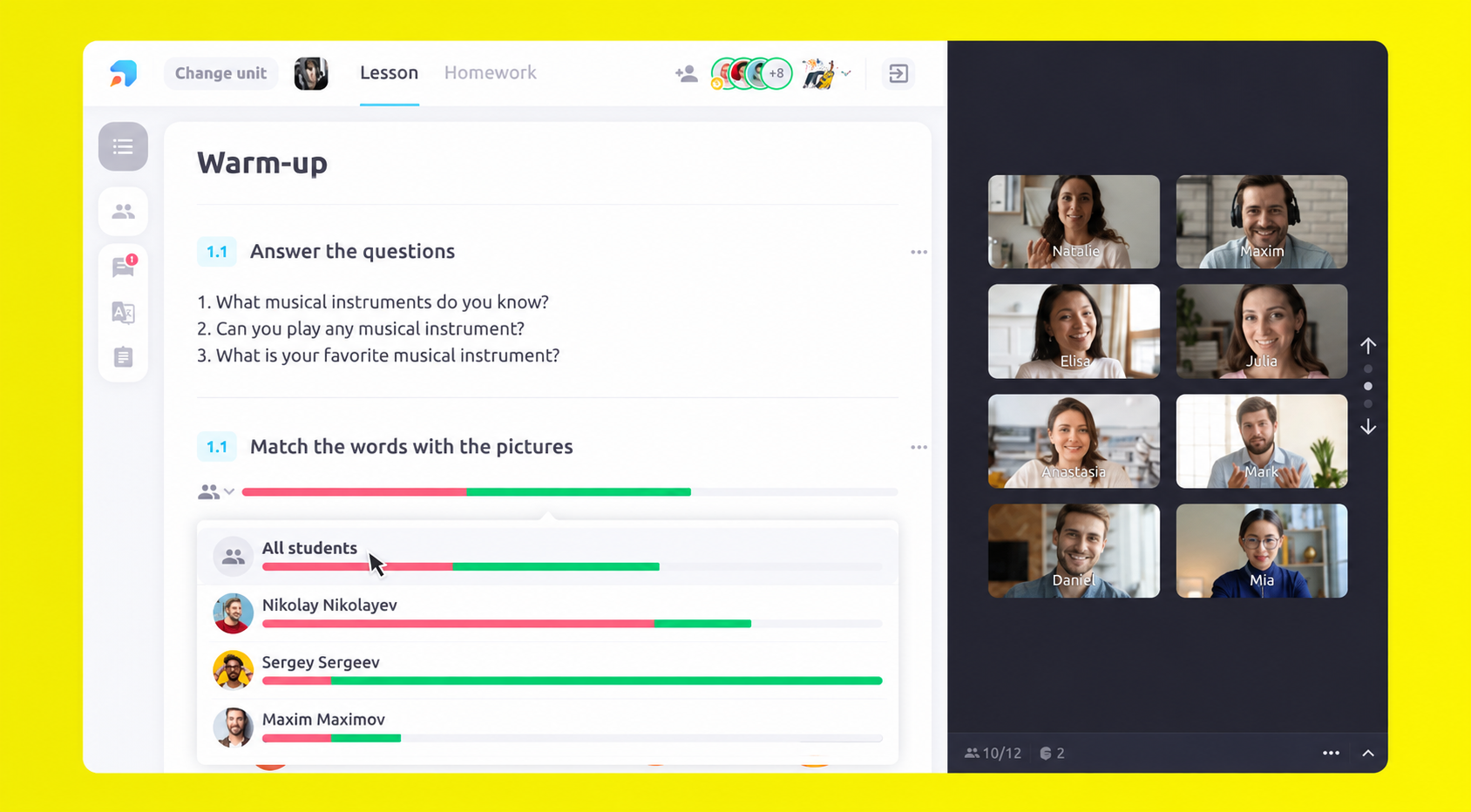
In a group classroom, you can see learners’ answers and the balance of correct and incorrect responses.
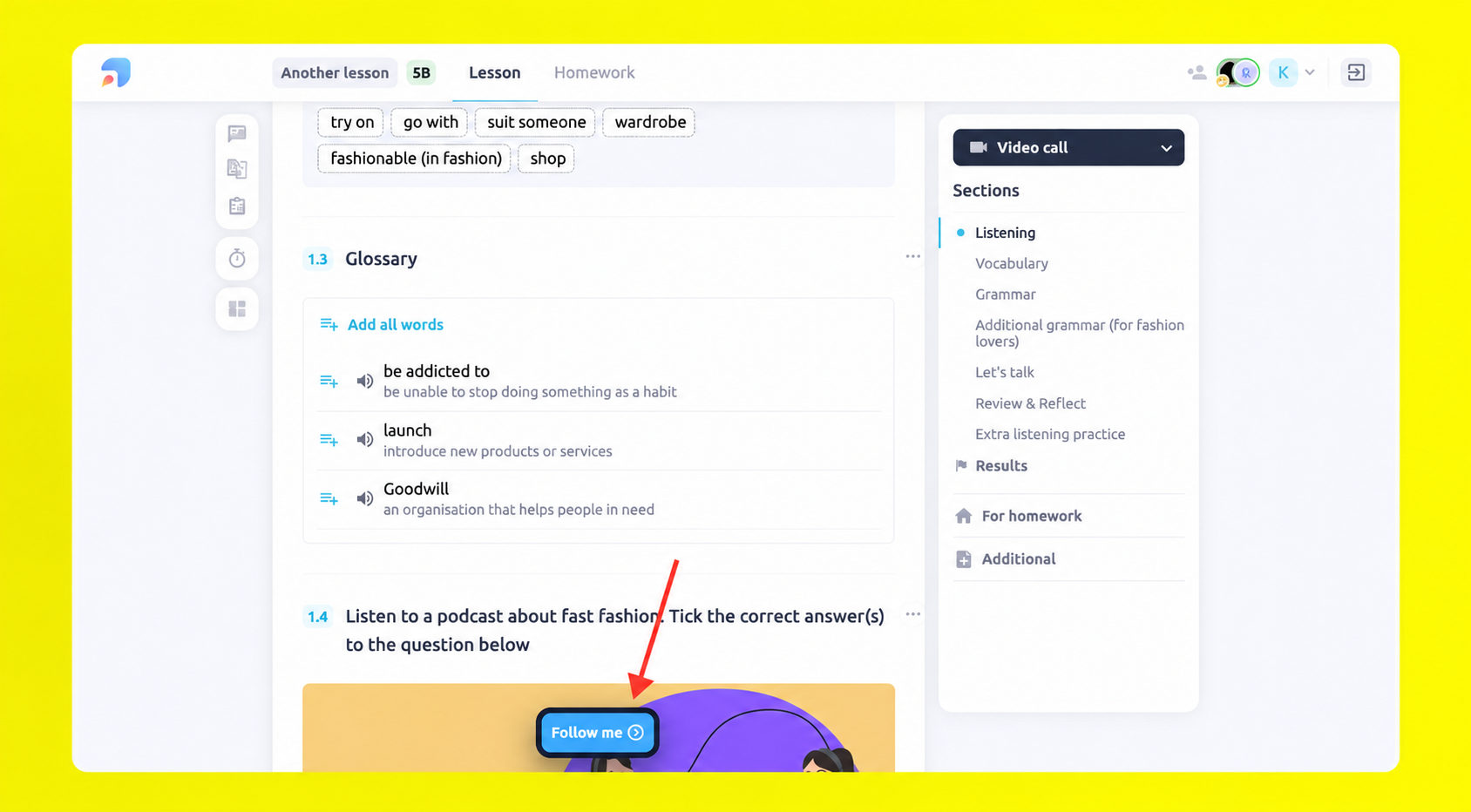
If learners are still on a previous section, click Follow me to bring them to the one you want to use.
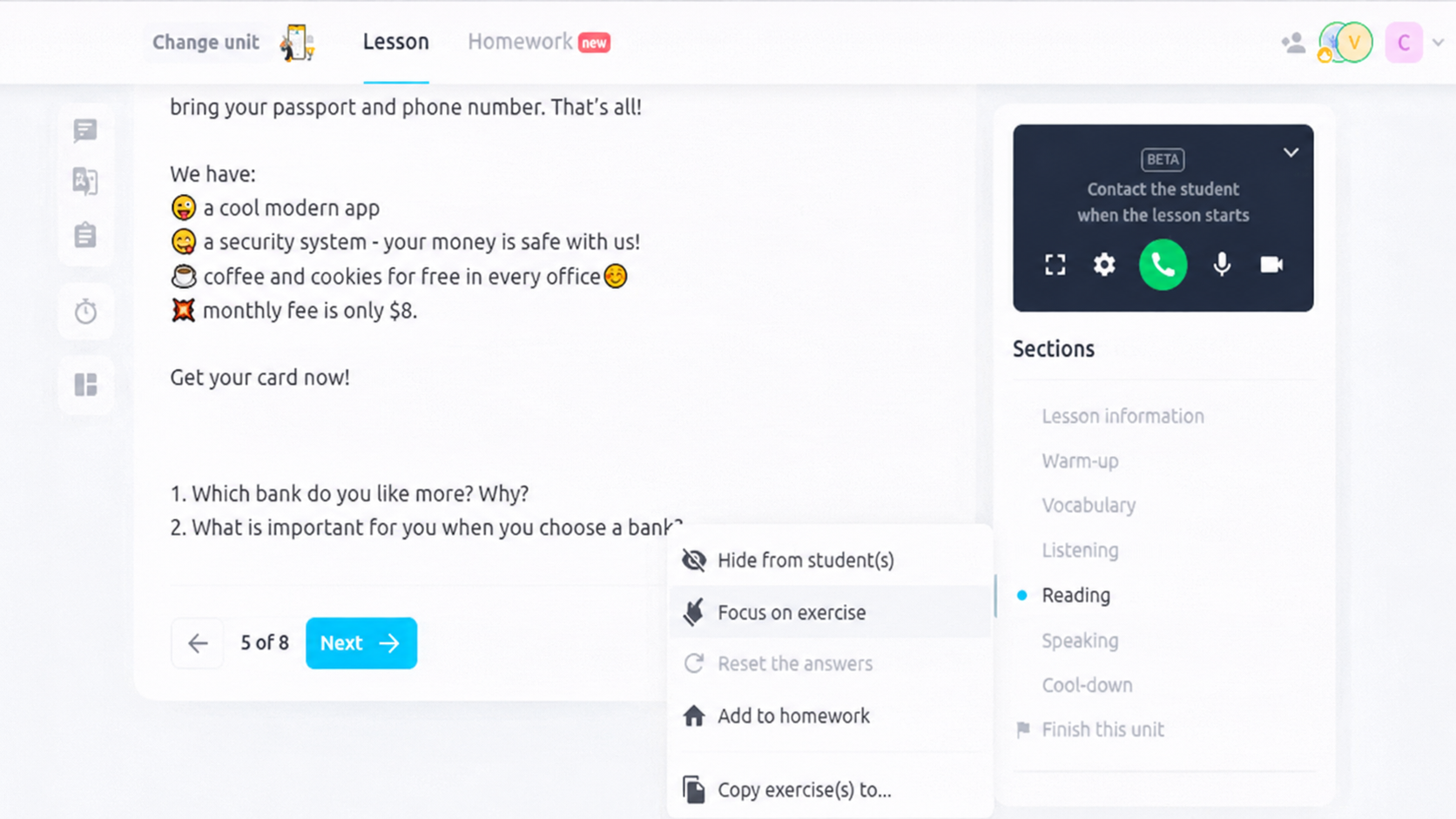
Use Focus on exercise to direct attention to a particular task, image or text.
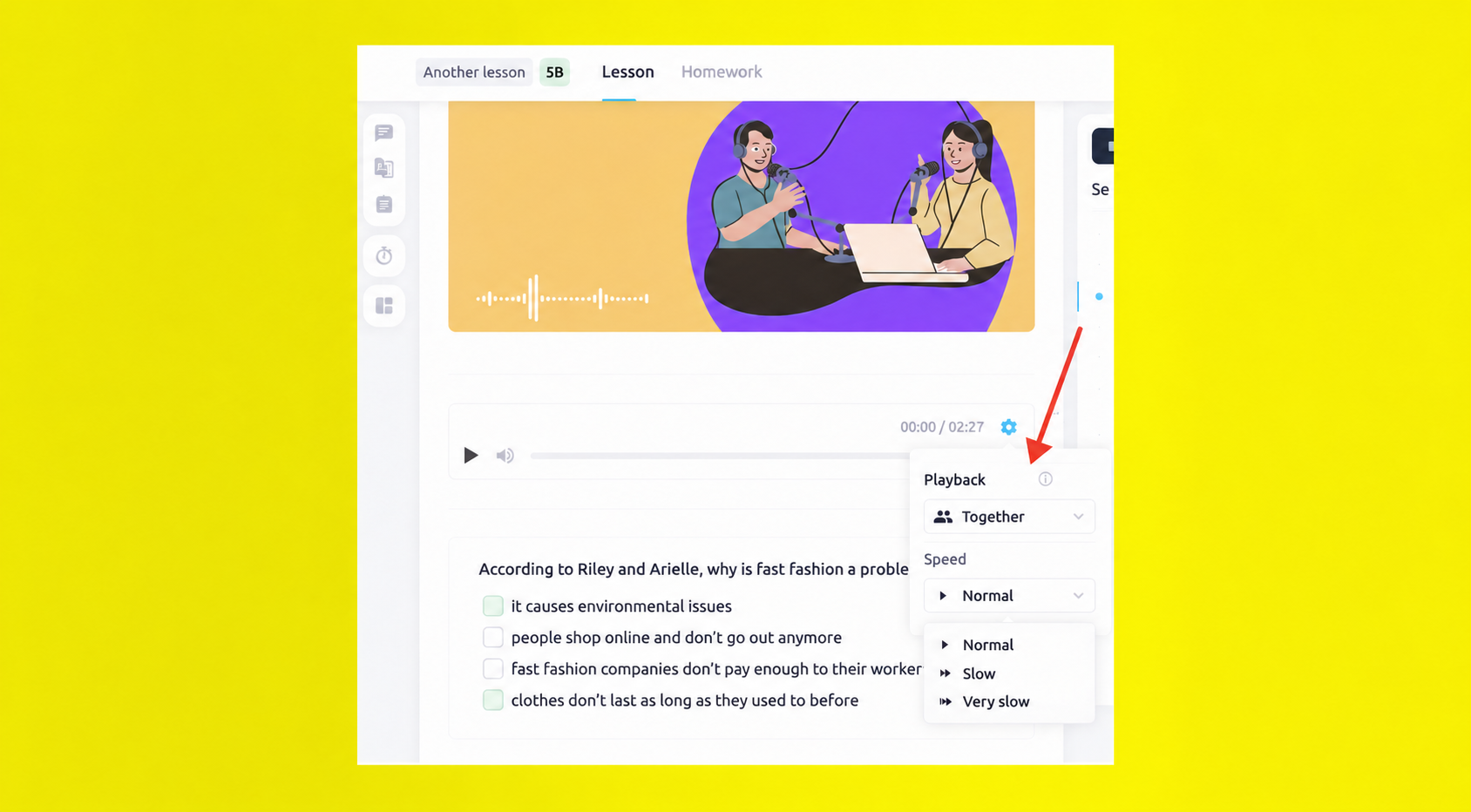
Listen to audio together, or let learners listen independently at a comfortable speed. You can also reveal the transcript when working through a recording.
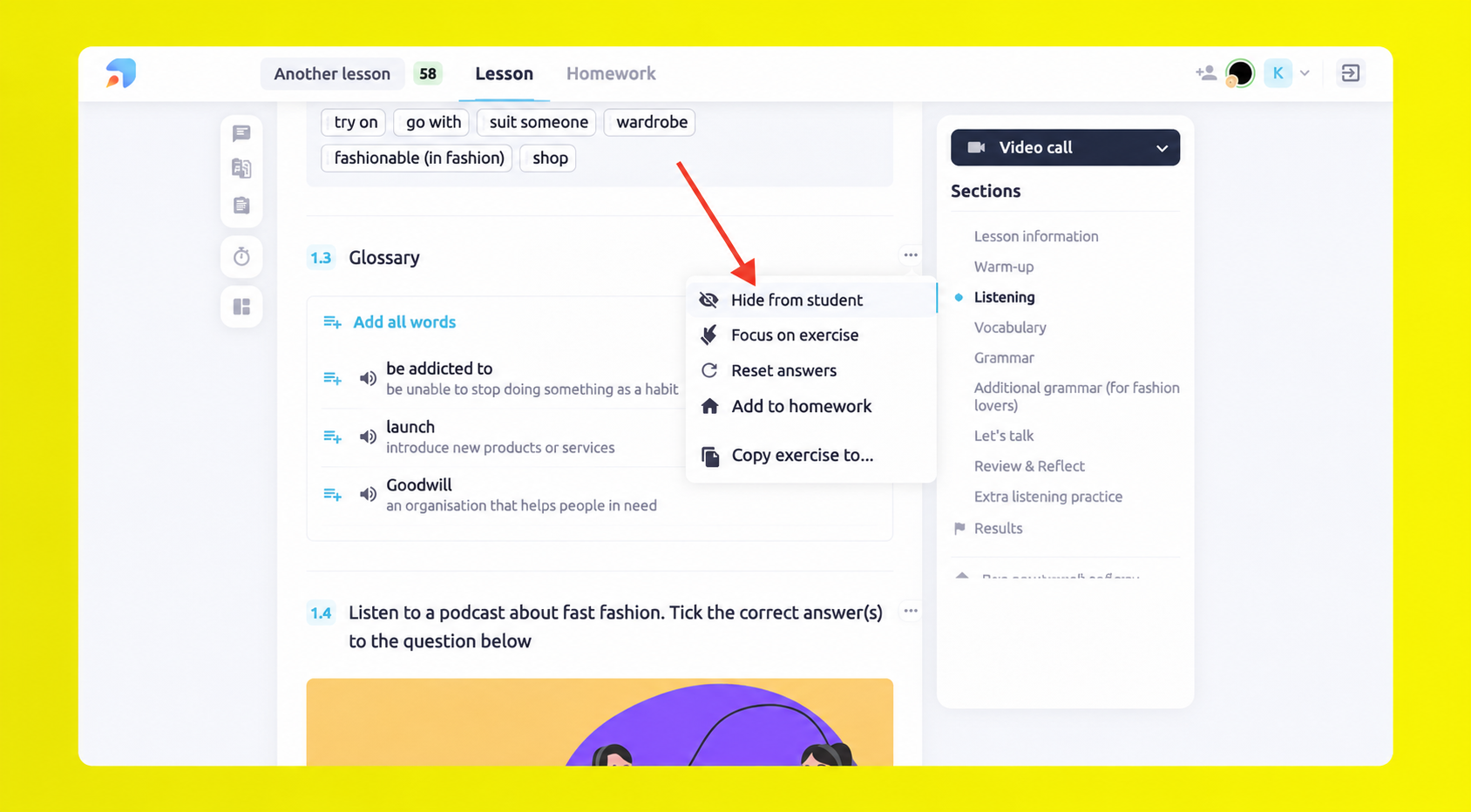
To hide an exercise, open its three-dot menu and choose Hide from student(s). A red eye icon identifies a hidden task. Use Show to student(s) when you are ready to reveal it.
3. The virtual whiteboard
Open the whiteboard with its toolbar button.
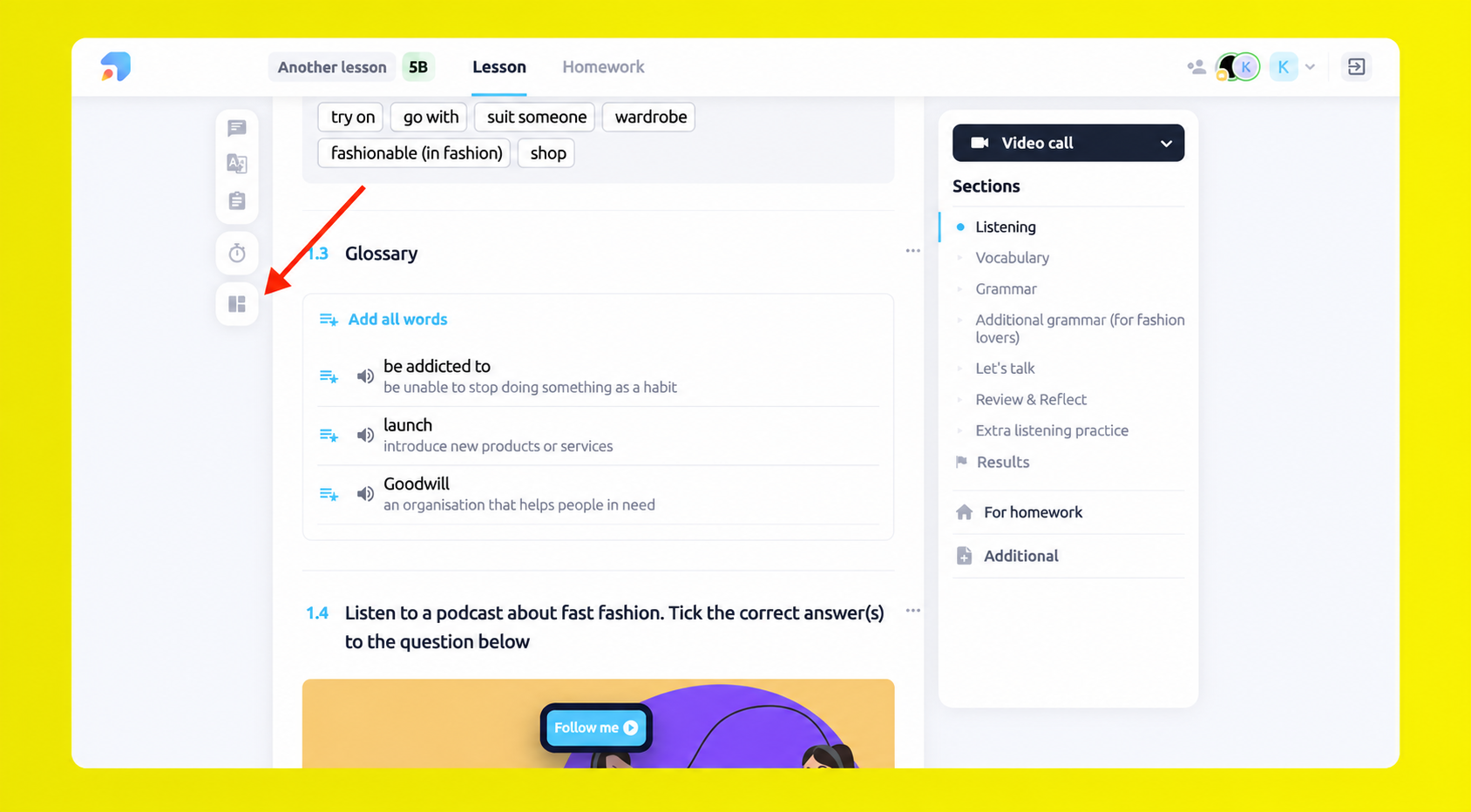
Use Follow me to bring learners to the board. You can see their cursors and they can see yours in real time.
Open a blank board or one you have prepared at any point during the lesson.
The whiteboard gives the group a shared place to work with images and visual explanations. In its settings, you can allow learner editing and choose whether to show participant cursors.
For example, a learner mentions a recent trip to Greece. Open a board with three or four photographs of Greece and ask them about the visit. Add useful vocabulary as the conversation develops. The images give you something concrete to discuss, connected to the learner’s own experience.
Use the shared board for an image activity everyone must see. Inside a group exercise, each learner instead has their own copy of the image and its edits.
4. Automatic checking
Supported exercise types are checked automatically, giving learners immediate feedback.
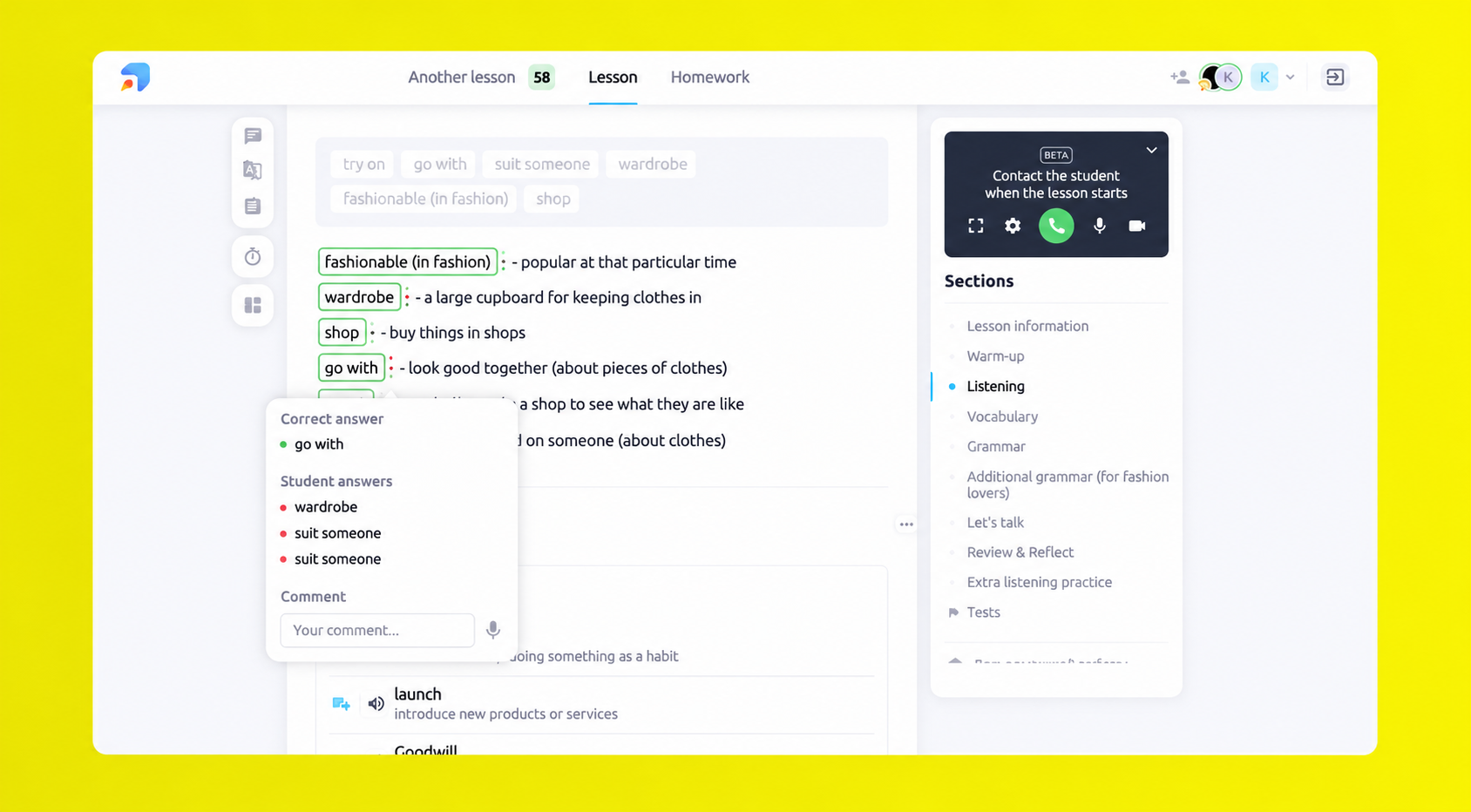
Open writing and free responses need manual checking. Click the yellow indicator beside a response and mark it correct or incorrect. Add a comment where the learner needs an explanation.
5. Translation
The built-in translation tool can help beginner and intermediate learners.
When reading a text, learners can select an unfamiliar word to see a translation into their chosen language. This lets them check meaning without waiting for the teacher, including during a group activity.
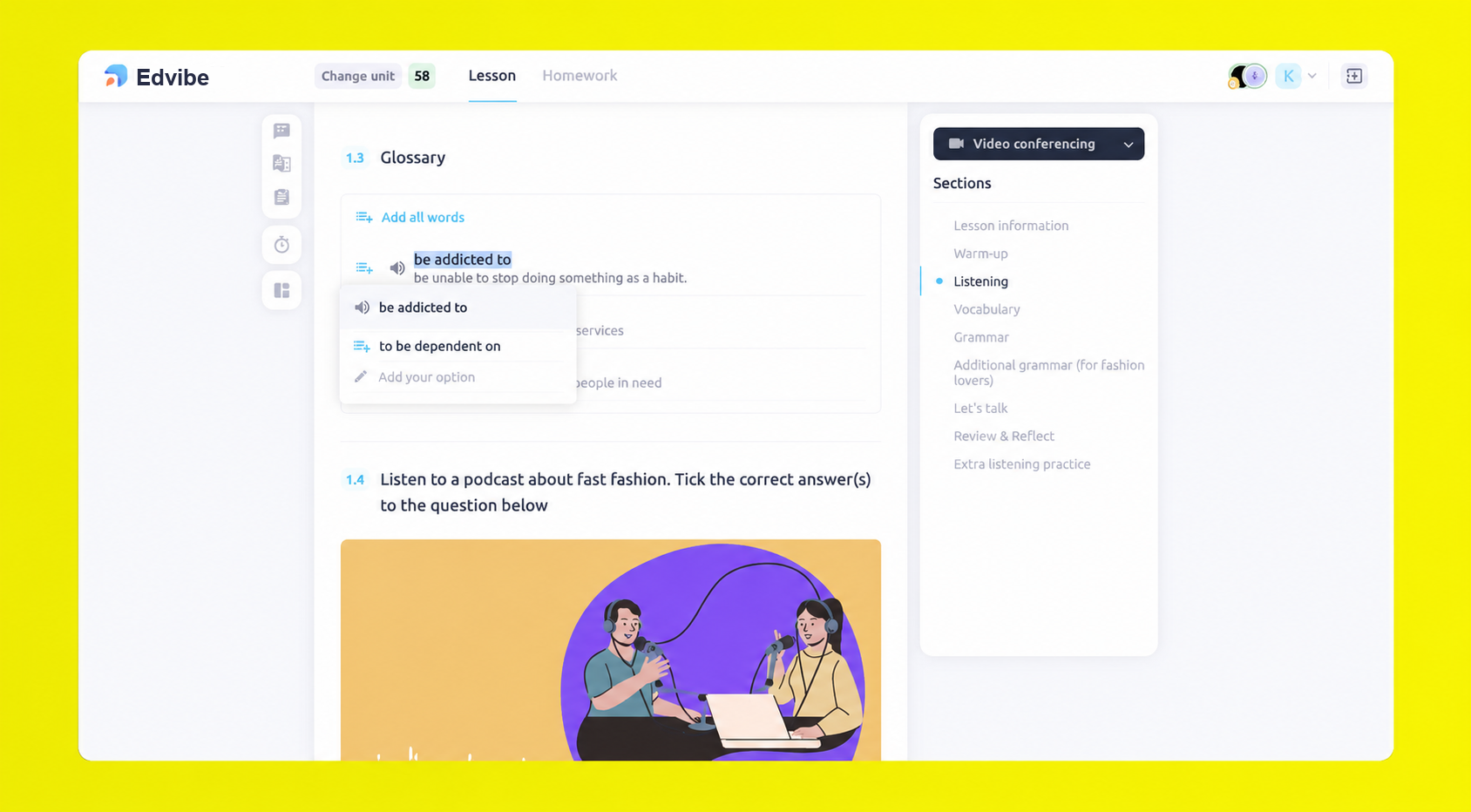
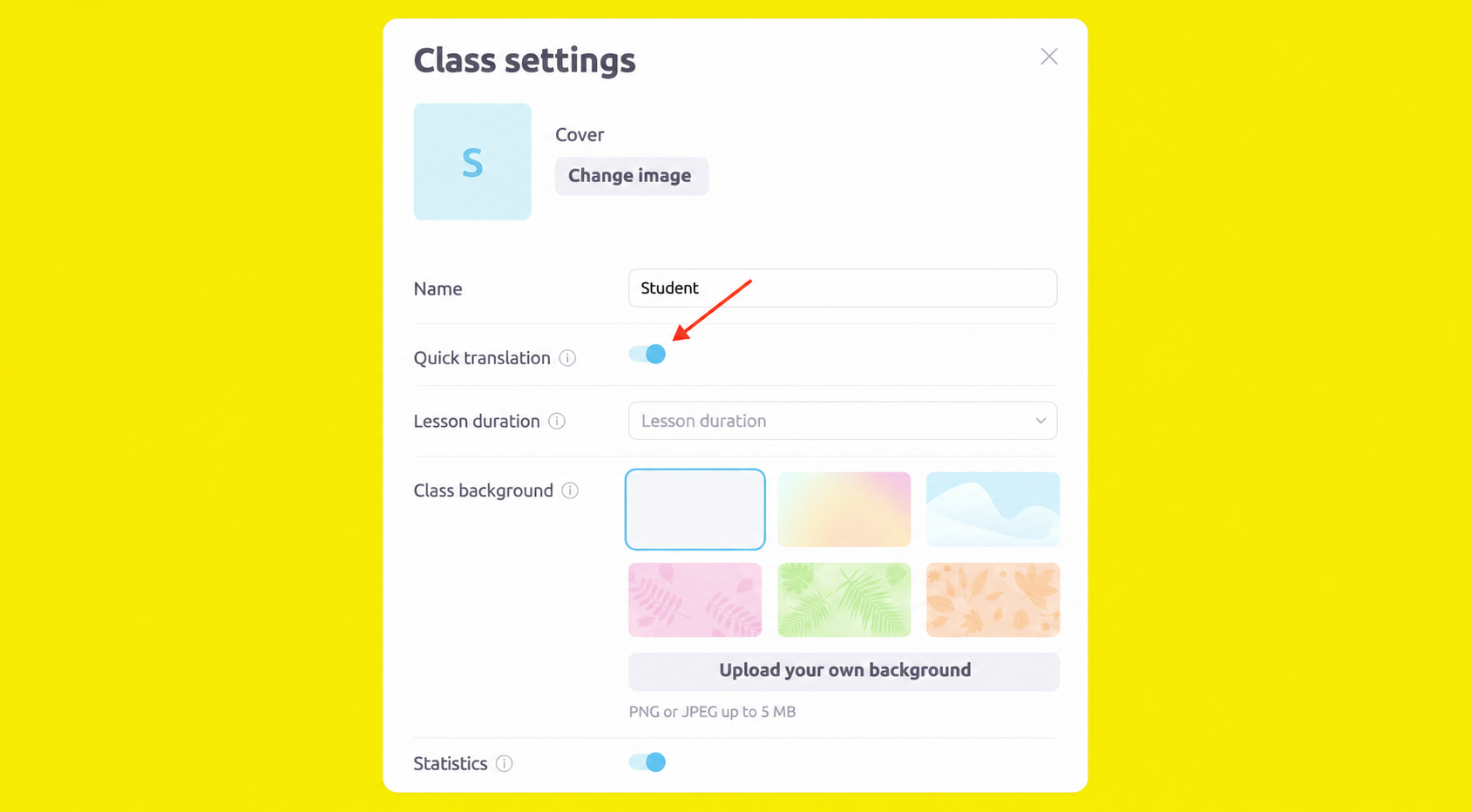
Before adding a learner, check their native language in the profile so the dictionary behaves as intended. In a mixed-language group, select a learner before adding a word for automatic translation.
6. Personal dictionaries
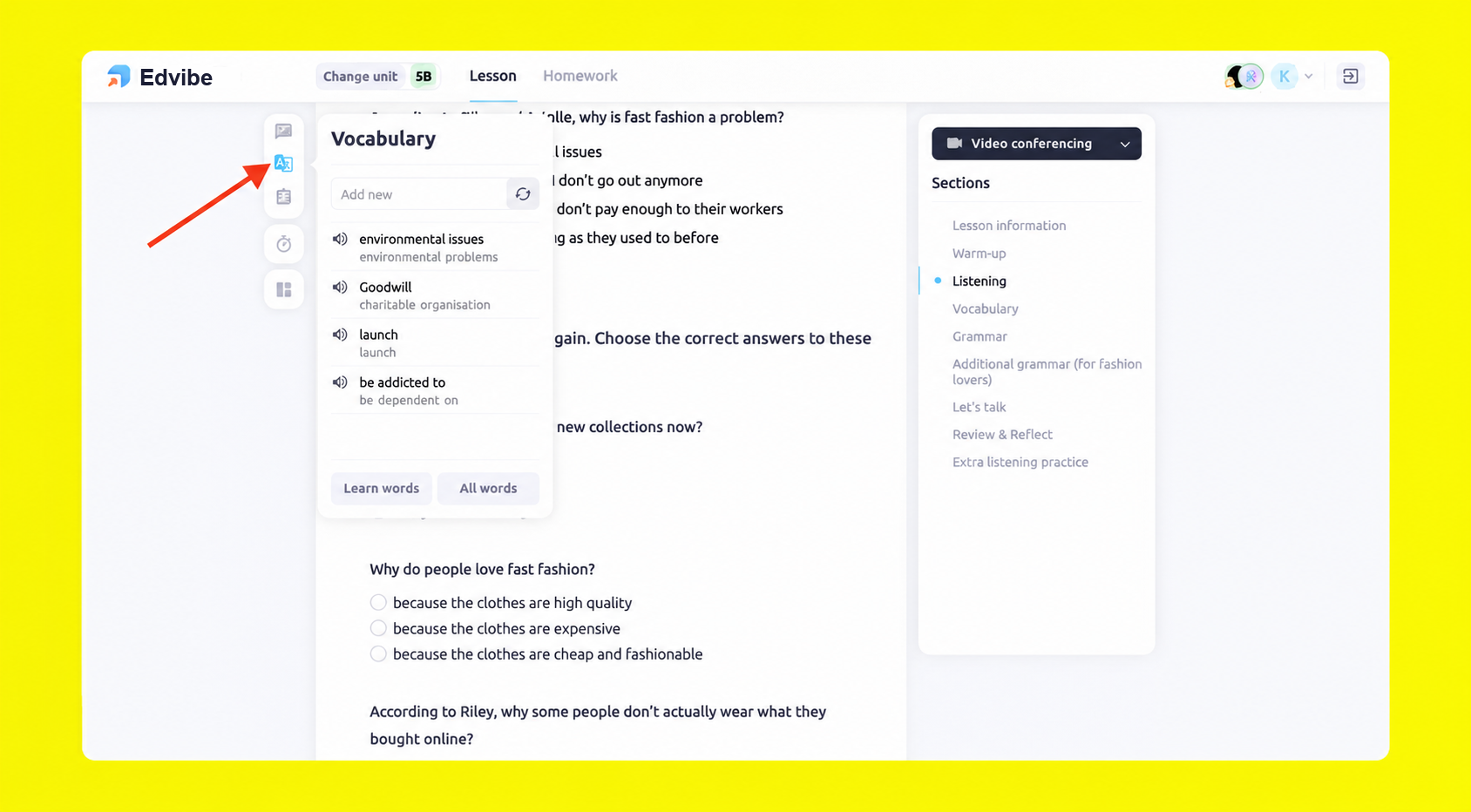
The personal dictionary keeps vocabulary for later practice. Both teacher-led additions and the learner’s own choices can become a record of useful language from lessons.
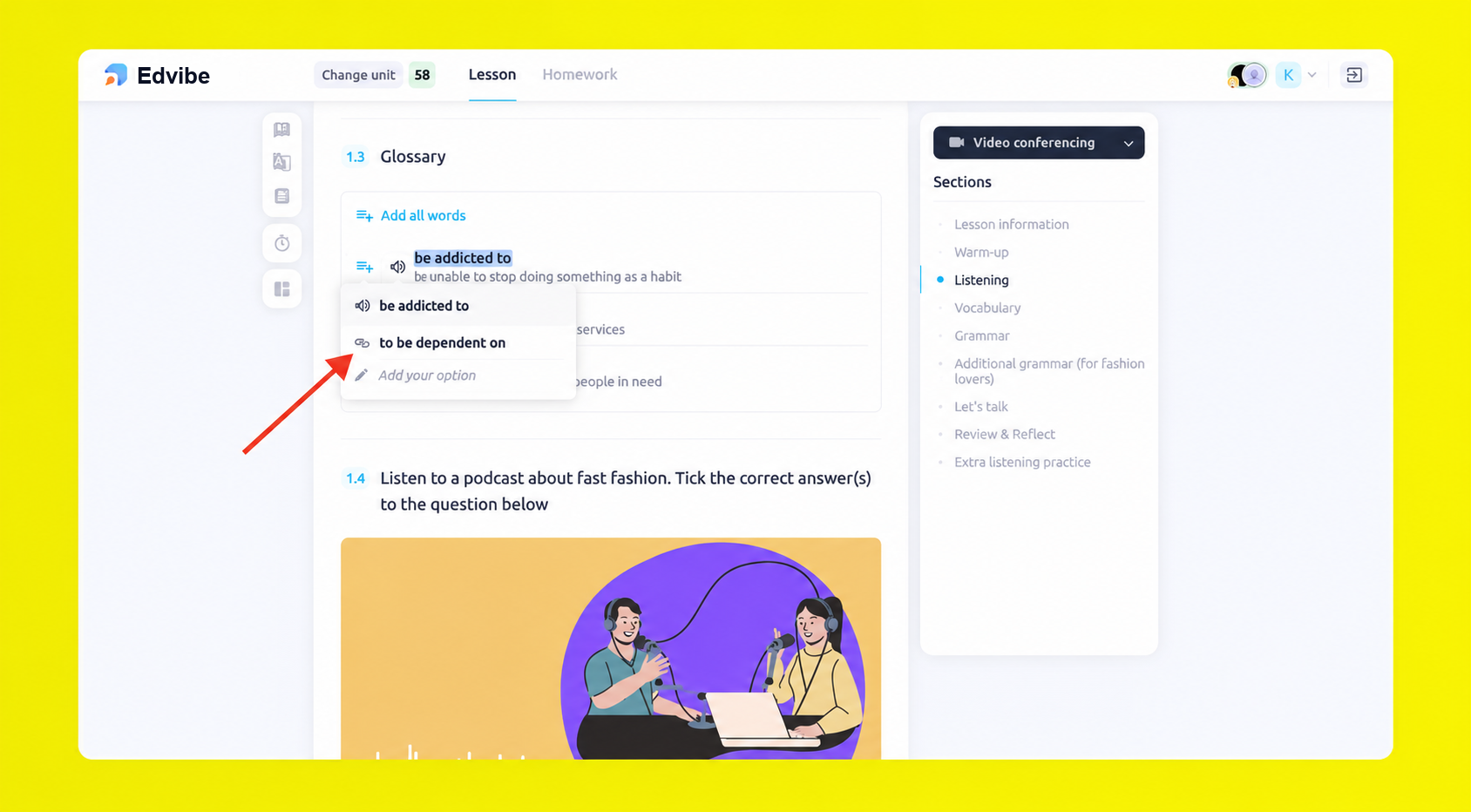
In a group class, select everyone to add a word to the group dictionary, or select one learner to add it only to their list. A learner’s individual dictionary can include words from other classes.
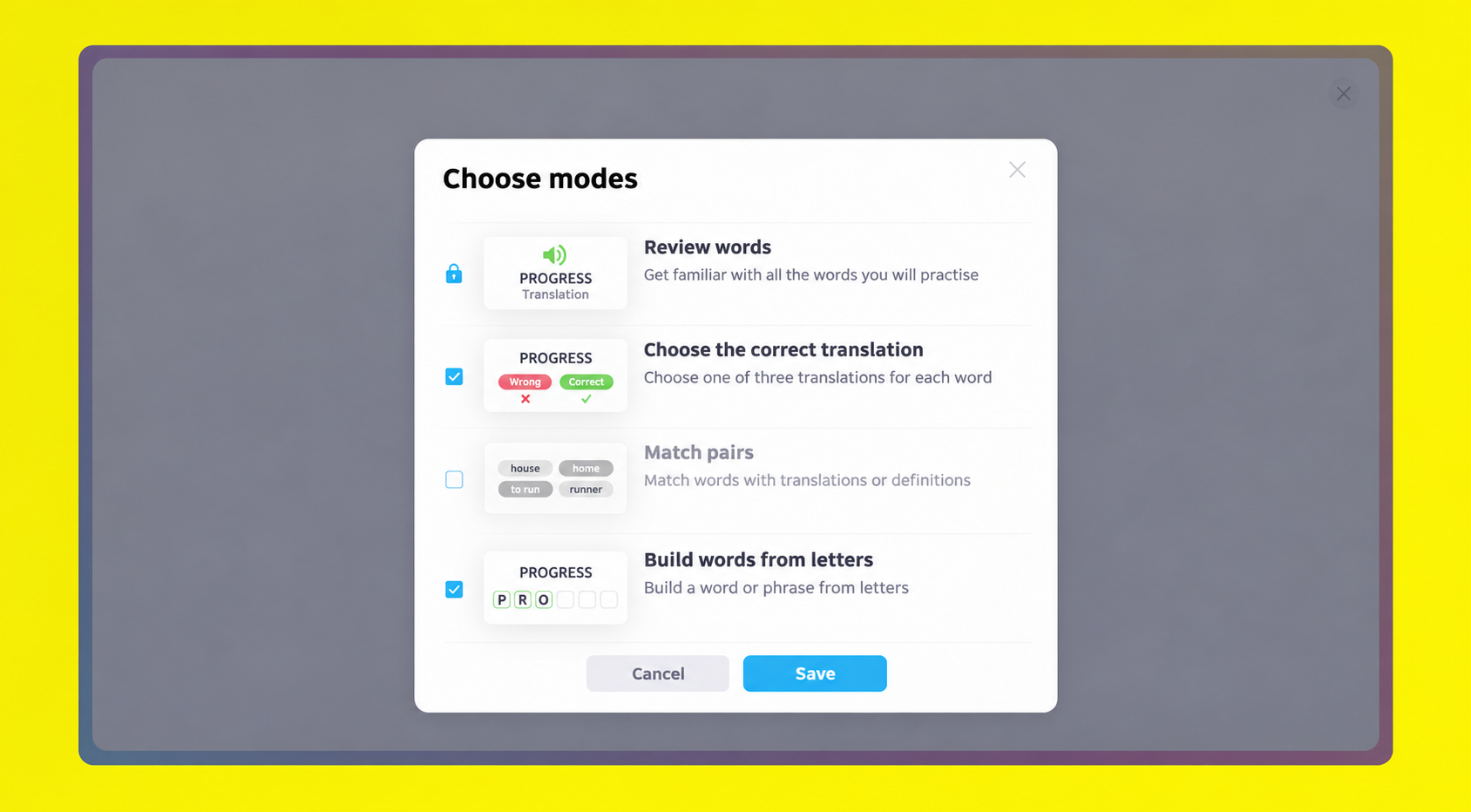
In a mixed-language group, enter a translation manually when adding a word for everyone. For automatic translation, select an individual learner first.
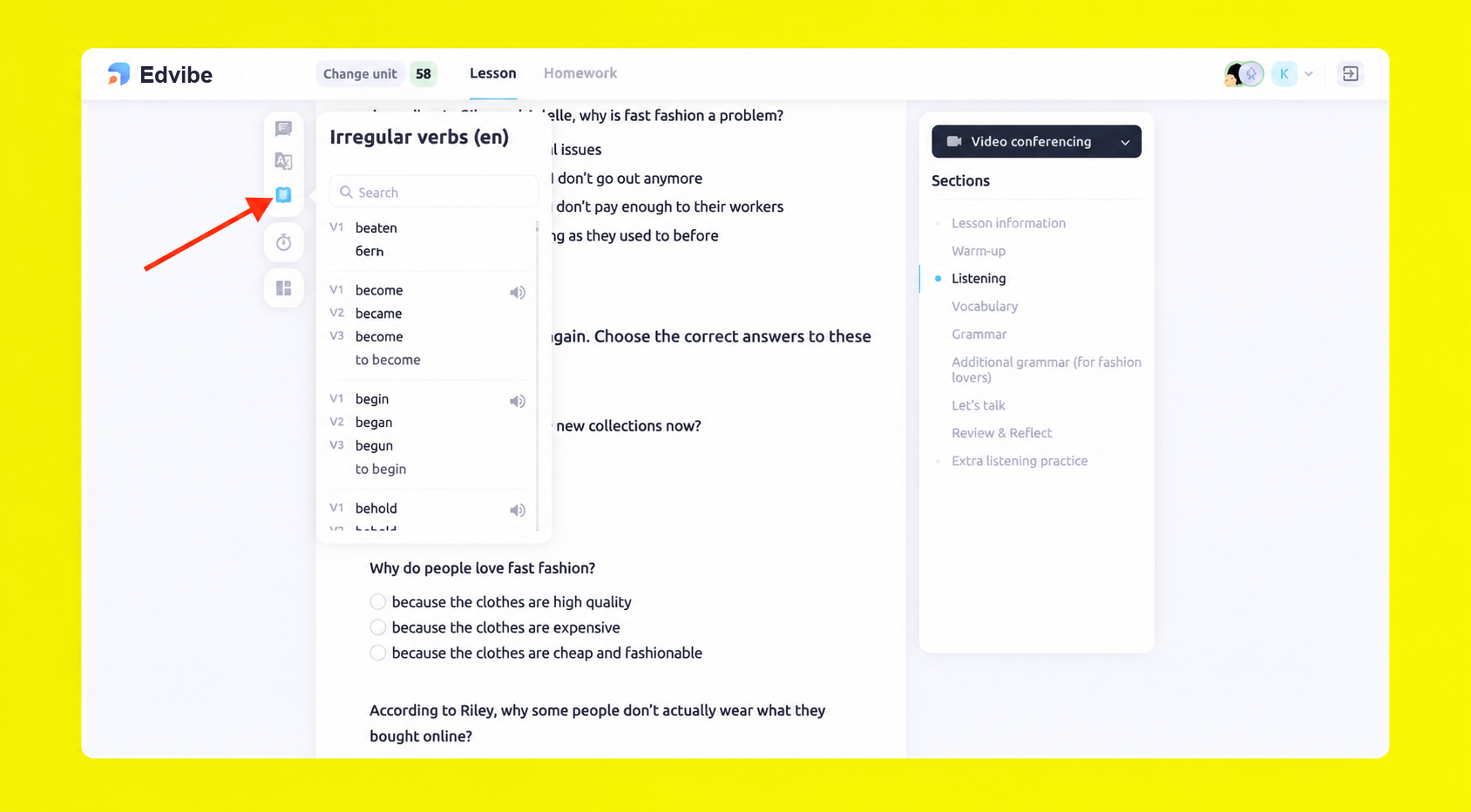
The platform includes a searchable list of irregular English verbs.
7. Chat
The classroom chat is a built-in messenger for lesson conversations and corrections.
Perhaps you want to share an expression that is not in the lesson materials or point out a grammar pattern. You can write it in the classroom instead of switching to WhatsApp or Telegram.
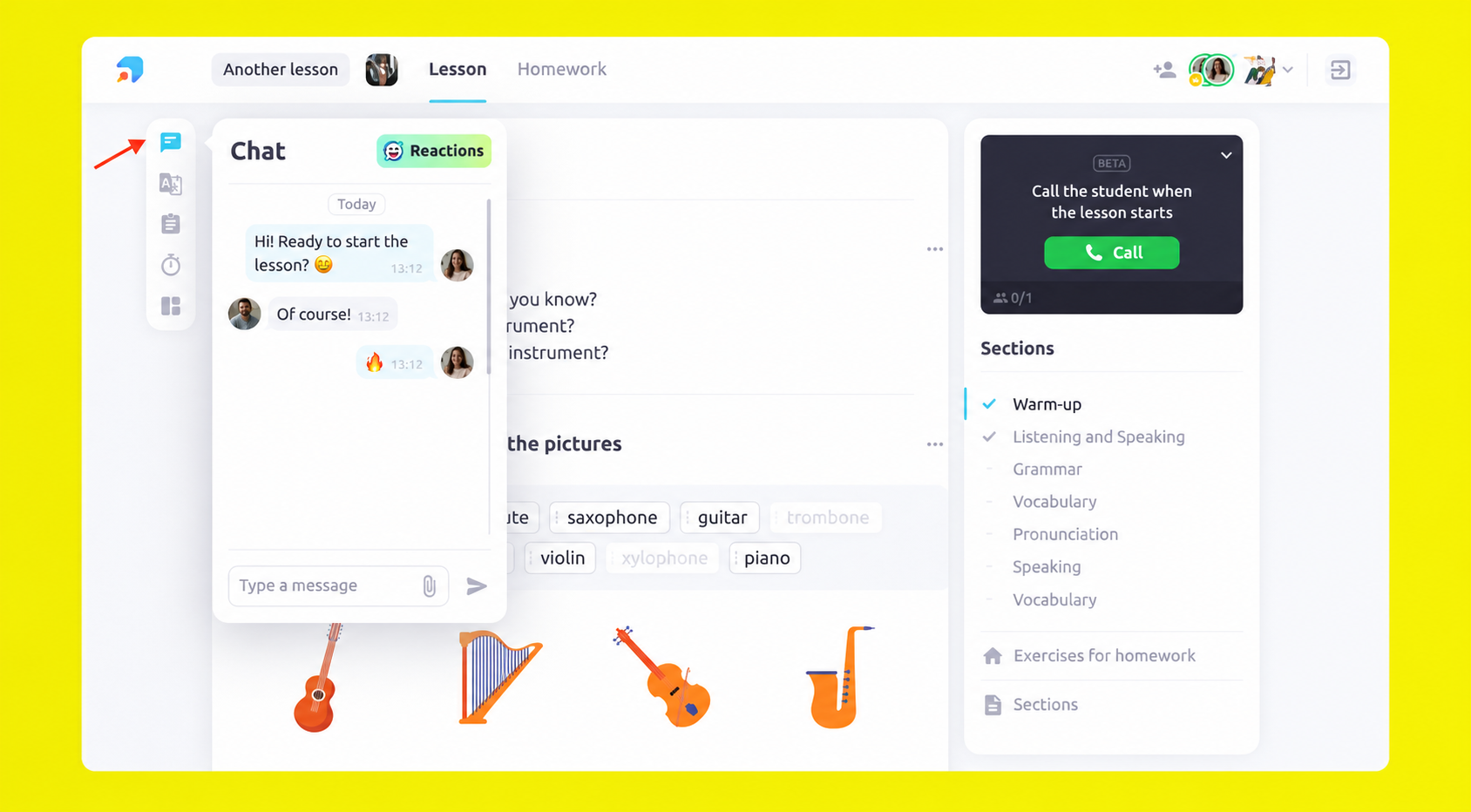
In group lessons, chat messages go to the whole group. Use it for a shared instruction or useful expression; choose another appropriate route for an individual conversation.
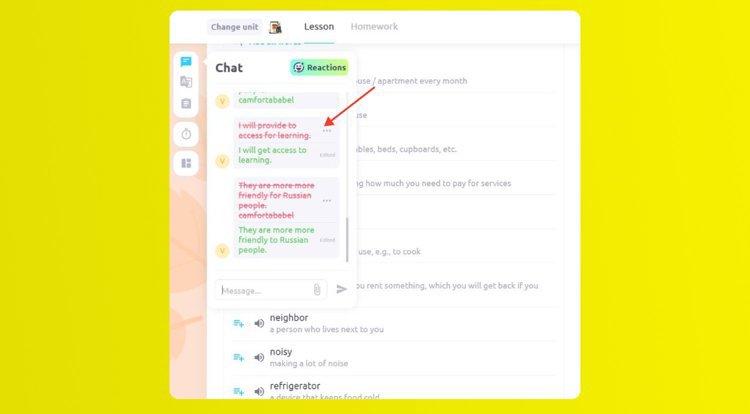
A short written reminder in the chat can support a spoken explanation without interrupting the activity.
8. Timer
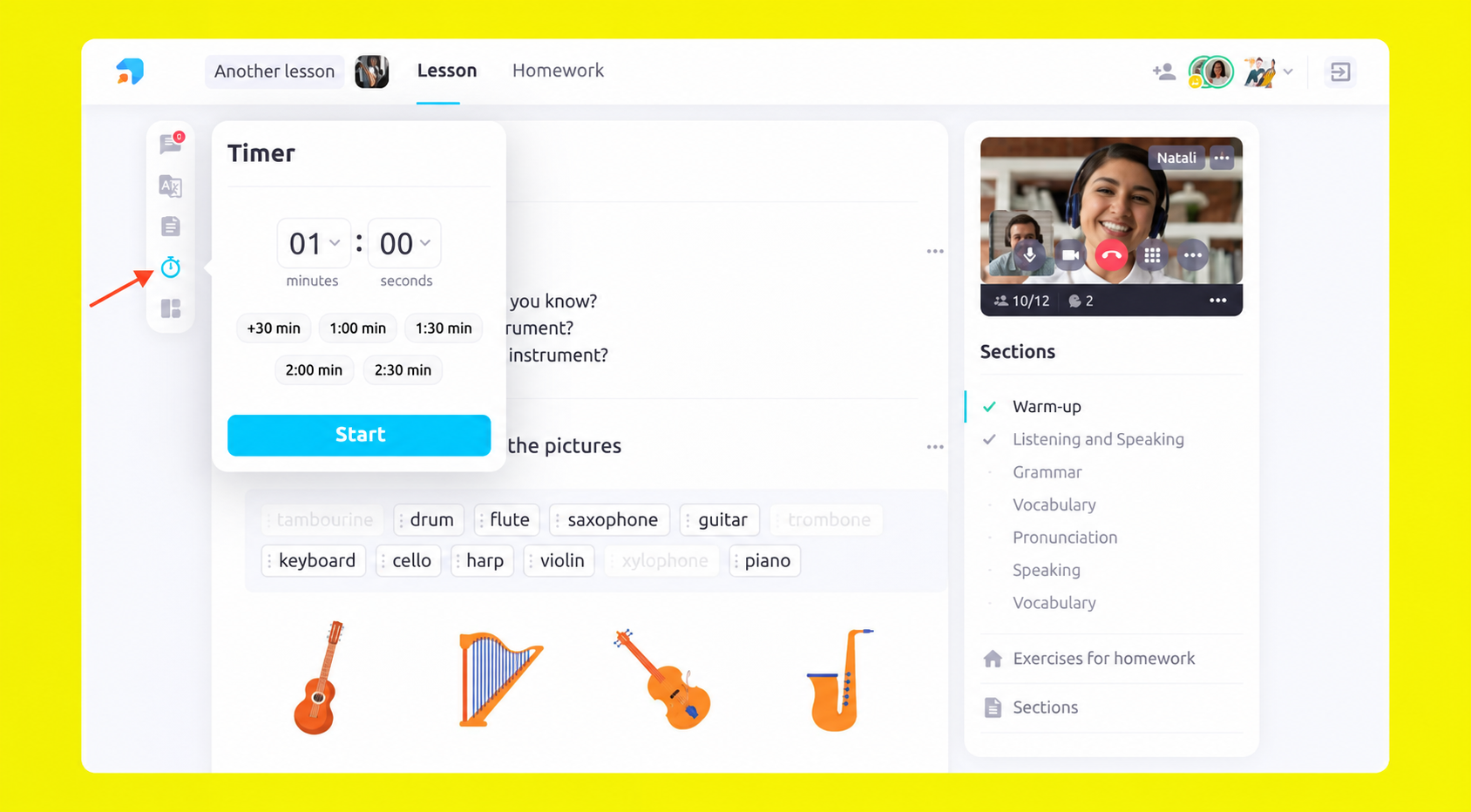
The timer is in the tools panel. Use it when a clear time limit serves the task, such as a brief planning stage before speaking.
What else can a teacher do?
Keep your place
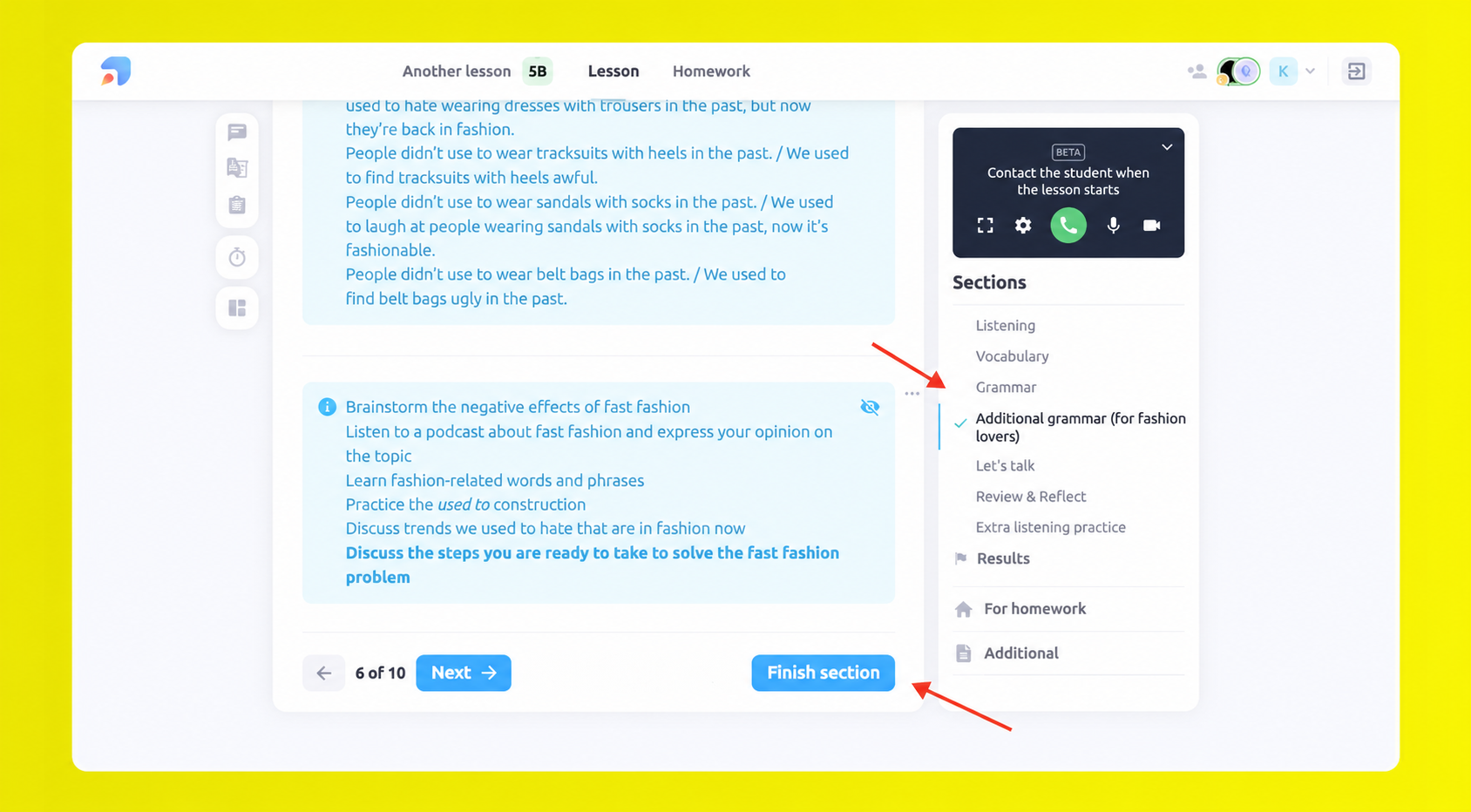
Use the sections panel to move between stages. Choose Finish the Section to mark a section complete, so you can see where the lesson stopped.
Reuse materials
Materials you create are saved in Materials and can be used in later classes. In a group classroom, each learner has a separate copy of the exercises.
Assign homework
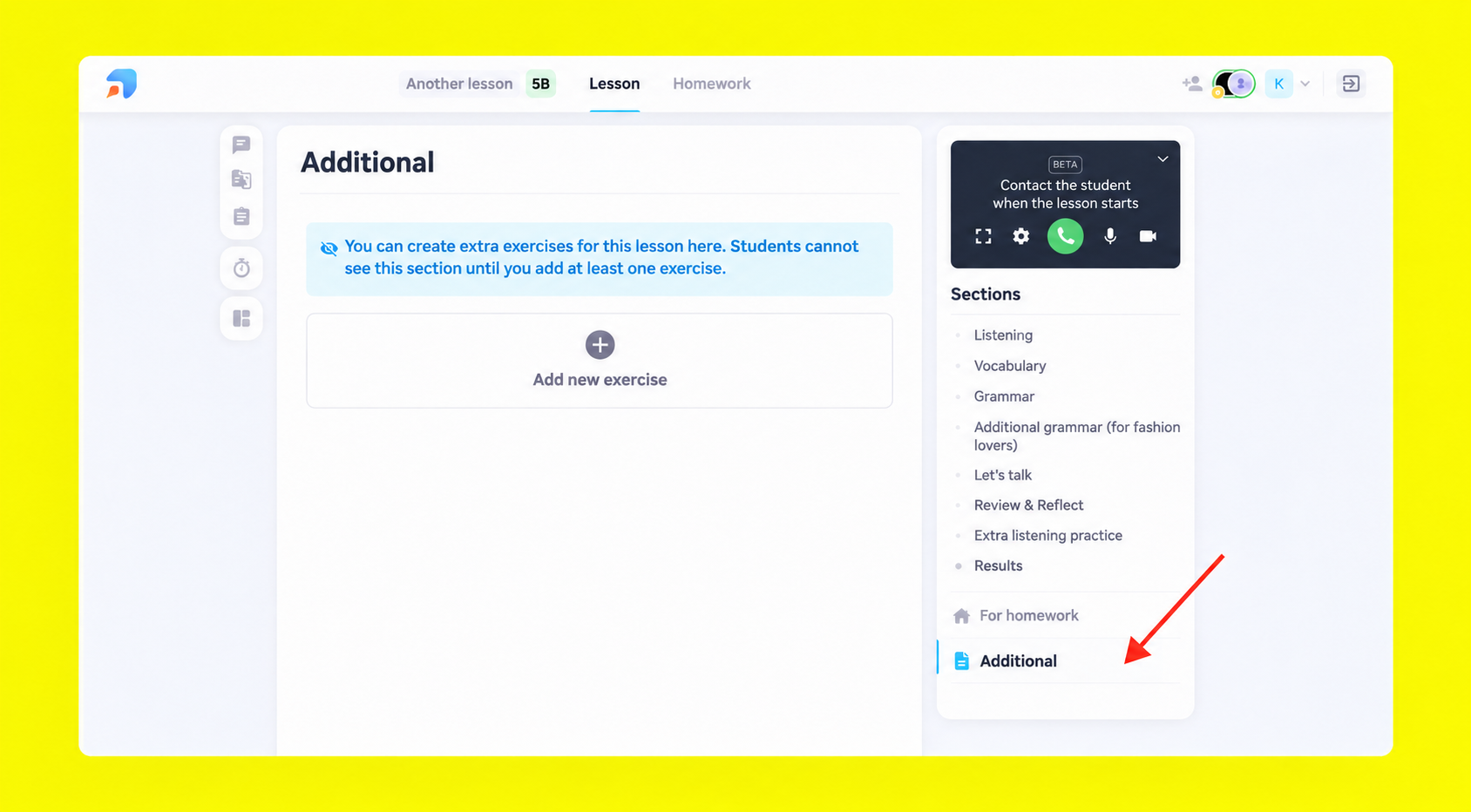
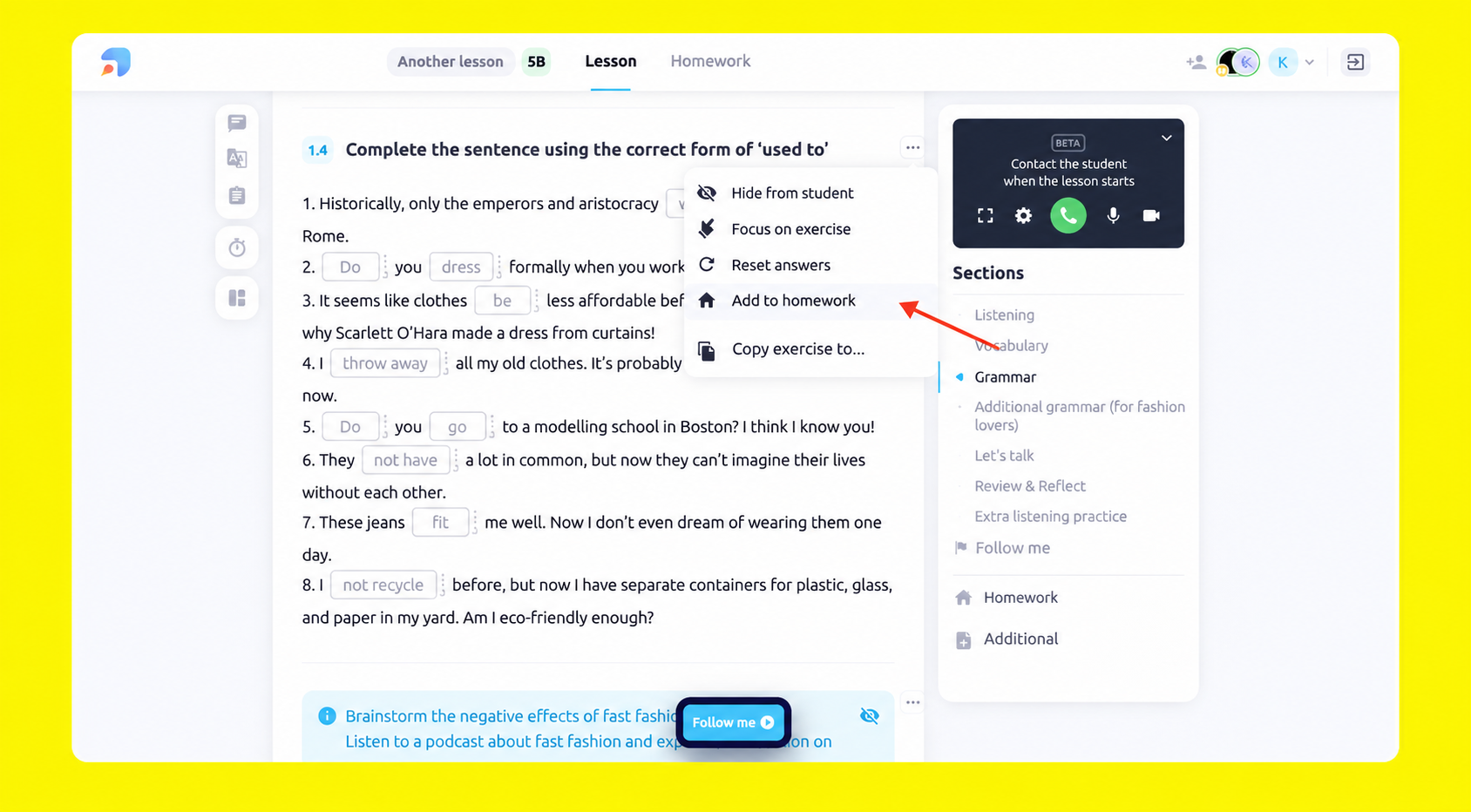
Open the exercise’s three-dot menu and select Add to homework. You can also select several exercises with checkmarks. Tasks stored in Exercises for homework are hidden until assigned.
The assignment appears in the learner’s Homework tab. After completing it, the learner submits it for review and you receive a notification. Open the assignment to check the responses.
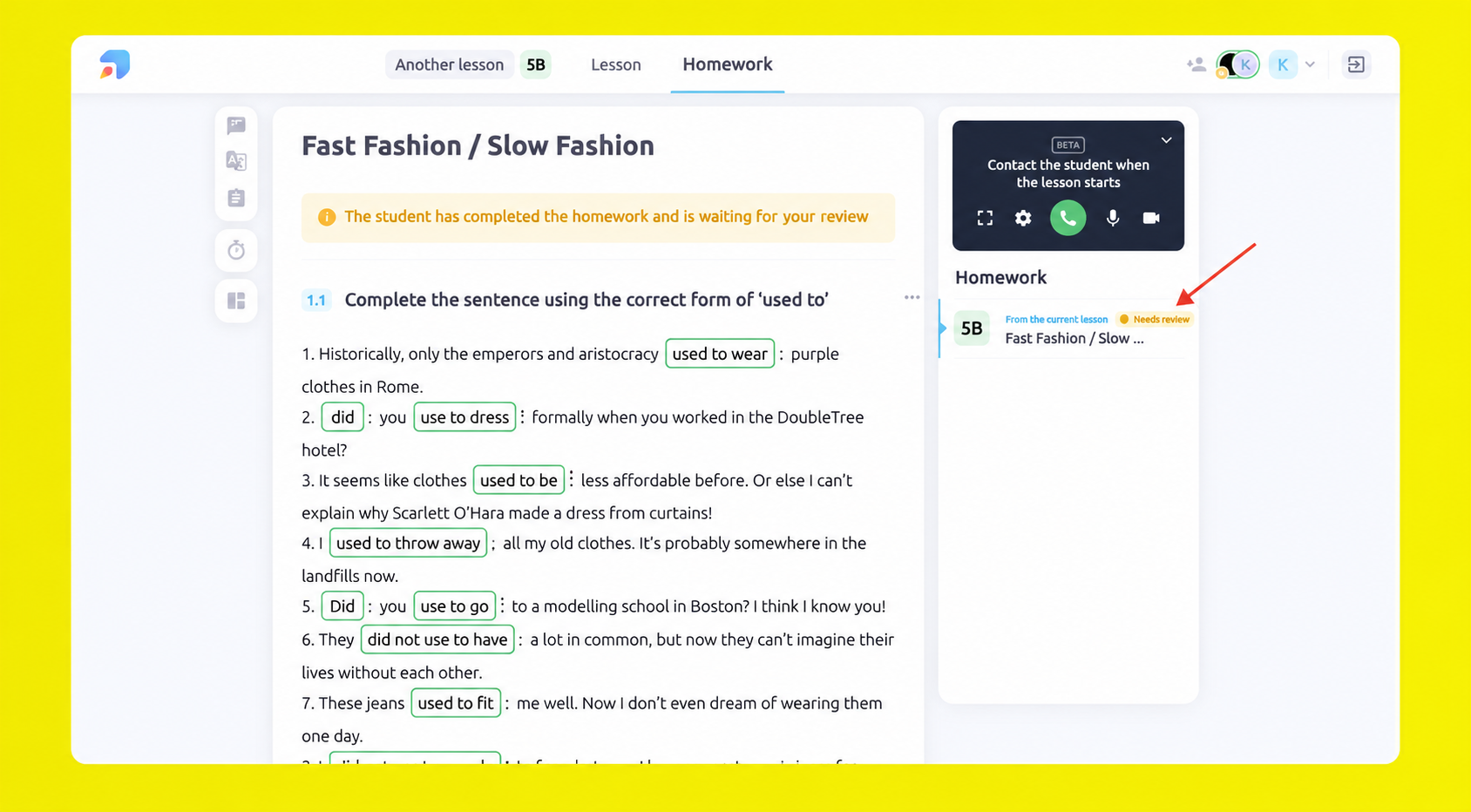
Mark satisfactory exercises as done. If some work needs revision, leave those exercises unmarked and return the assignment for review. Complete the assignment when the learner has finished the required work.
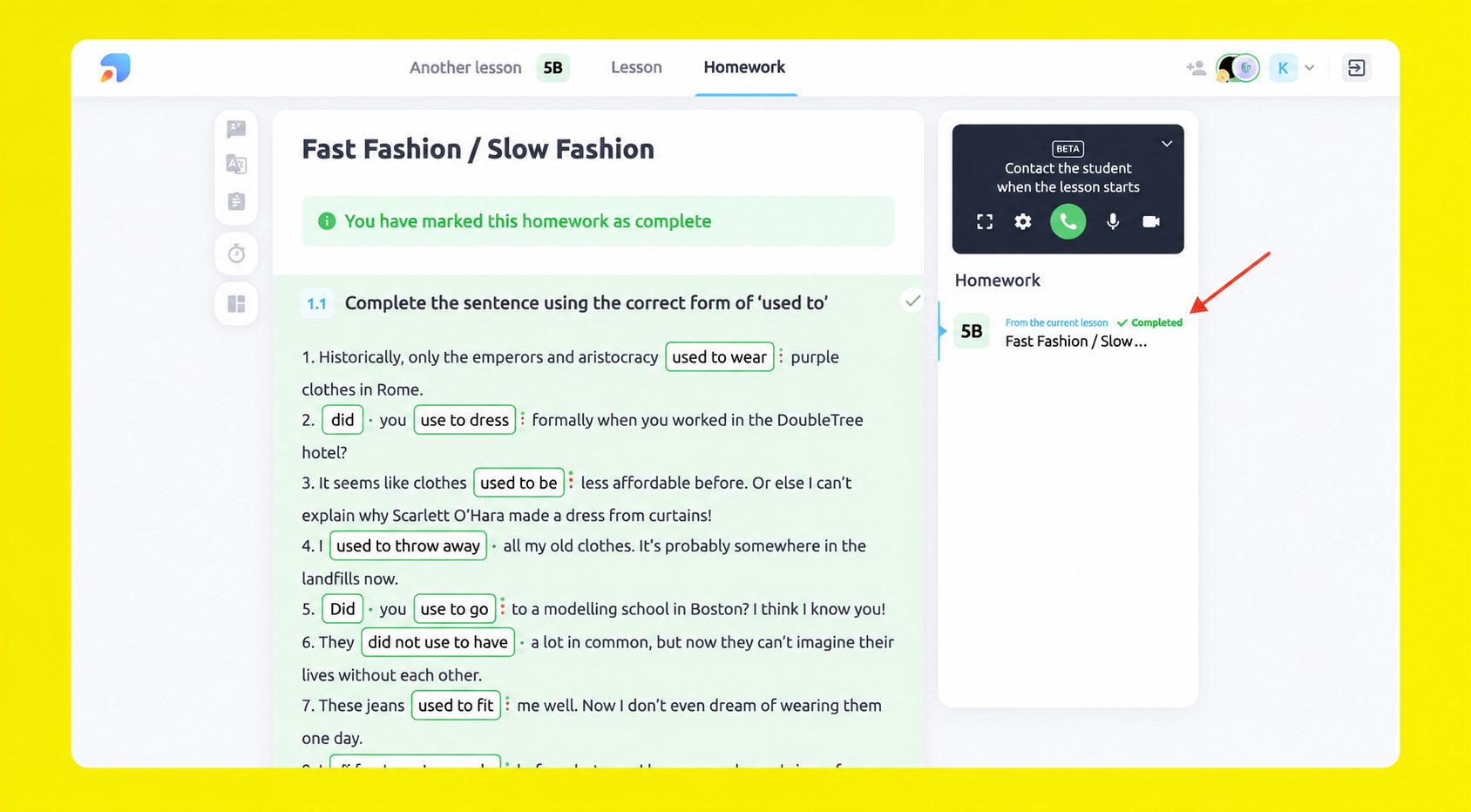
Give written and voice feedback
Open the comment field beside a response to explain a correction. Use the microphone icon when a voice explanation is more useful. Closed-answer tasks support automatic checking; free responses require your judgement.
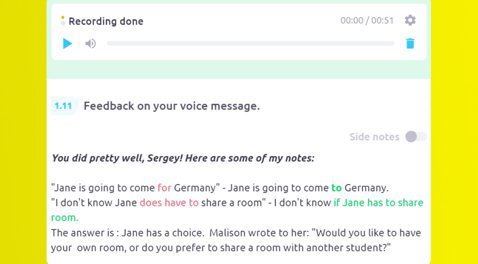
Choose ready-made materials
In the class, choose Select a ready-made training material and open Catalog. Preview the unit before selecting Pin. Check its aim and task sequence against the learner’s needs.
Before teaching, identify where the learner will meet new language, practise it and use it more independently. Decide which task will show you whether the aim has been met.
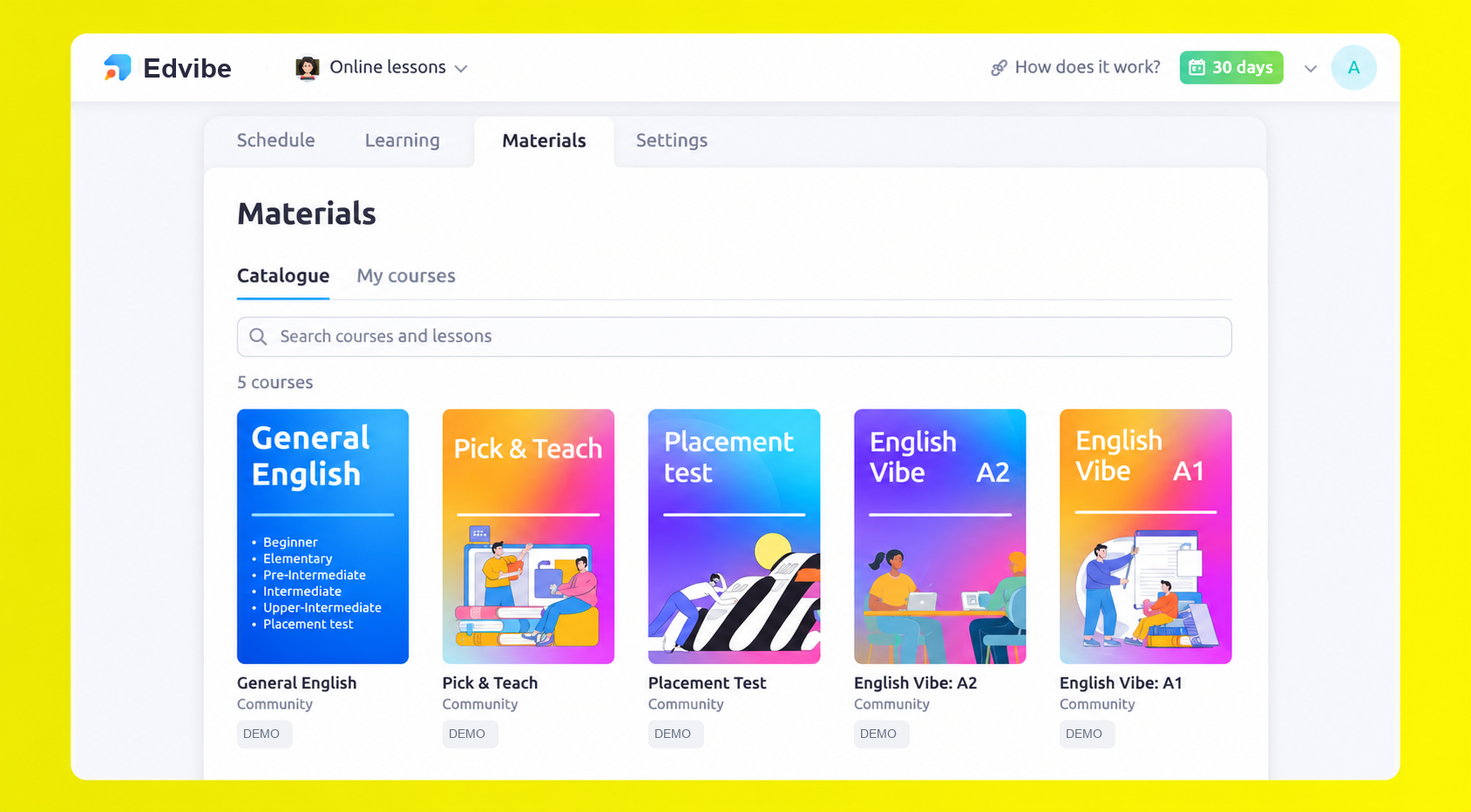
Read available teacher notes and preview the activities. A lesson’s level label is a starting point for your decision, not a substitute for knowing the learner.
Use your own materials and create new ones
You can add your own materials and turn them into interactive activities. Learners can draw, fill gaps, answer quizzes, and match words and pictures rather than only reading a page.
Once added, materials can be reused with different learners and groups. School managers can manage access for teachers, administrators and learners.
The lesson builder and the AI+ tools offer other ways to prepare activities.
The main tools at a glance
- A classroom for live individual and group lessons.
- Built-in video calls, automatic checking for supported exercises, a whiteboard, vocabulary practice and chat.
- Shared activity in real time.
- Homework assignment and written or voice feedback.
- Ready-made materials you can adapt, alongside your own lessons.
- A place to keep lesson materials and feedback together.
Who can use it?
The classroom is intended for teachers and organisations running live online lessons.
Independent tutors
Run individual and group lessons, reuse materials, and reduce some of the manual preparation and checking.
Online schools
Bring shared materials and interactive activities into the teaching team’s routine.
Schools and in-person learning centres
Set homework and tests online, or add an online teaching option for learners further away.


